TL;DR
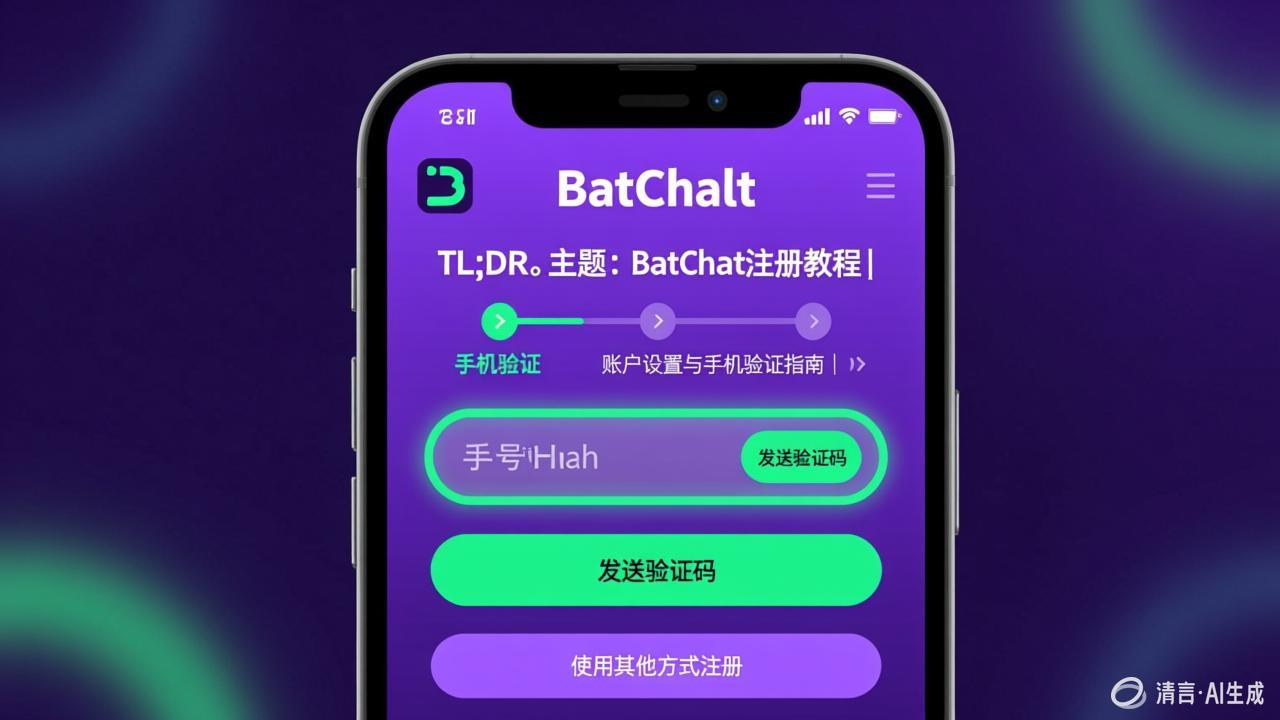
Registering on BatChat (蝙蝠聊天) takes about 3-5 minutes. You need a valid phone number that can receive SMS. The process: download the app from batchat.com → enter phone number → receive and enter the 6-digit verification code → set display name → enable unlock password (face, fingerprint, or PIN). Common issues include not receiving the verification code (check carrier, try again after cooldown) and device compatibility (Android 8.0+ required). After registration, you land on the main chat list and can start adding contacts immediately.
What You Need Before Registering
Before you start the BatChat registration process, make sure you have:
- A valid phone number — this is the only identifier BatChat uses. No email-only registration is available
- SMS reception capability — the verification code comes via text message
- A compatible device — Android 8.0 (Oreo) or later, or a supported iOS version
- Internet connection — required for verification and initial setup
- Storage space — approximately 150 MB free for the app and initial data
BatChat does not support registration via email, social media accounts, or third-party login. Your phone number is your account. This mirrors the approach used by WeChat, WhatsApp, and Signal.
Step-by-Step Registration Process
Step 1: Download and Open the App
If you haven’t installed BatChat yet, follow the download guide for your platform:
- Android: Download the APK from batchat.com (Android下载), enable “Install from unknown apps” in Settings, then install
- iOS: Search “蝙蝠聊天” or “BatChat” in the App Store
- PC/Mac: Download from batchat.com’s desktop download section
Open the app after installation. You’ll see the welcome screen with the BatChat logo.
Step 2: Select Your Region and Enter Phone Number
The first screen after the splash shows a phone number input field with a country code selector.
- Tap the country code dropdown (defaults to +86 for China)
- Select your country — the list includes major countries and territories
- Enter your phone number without the country code
Make sure the number is correct. If you enter a wrong number and the verification code goes to someone else, you cannot complete registration with that code.
International users: Select the appropriate country code. BatChat supports international phone numbers. The format is the standard country code + subscriber number (no leading zeros in the subscriber number).
Step 3: Request and Enter the Verification Code
Tap Get Verification Code (获取验证码). An SMS with a 6-digit code will be sent to your phone.
Timing: The code usually arrives within 30 seconds. During peak hours or with certain carriers, it can take up to 2 minutes.
Validity: The code has a limited validity window. Enter it promptly after receiving it.
Resending: If the code doesn’t arrive, a cooldown timer appears on the button. Wait for the timer to expire, then tap again. Do not spam the button — carrier-side rate limiting may block further SMS for a period if you request too many codes.
Enter the 6-digit code in the input field. If correct, the app proceeds to the next step.
Step 4: Set Your Display Name
After verification, BatChat asks you to create a profile:
- Display name — this is what other users see. It does not need to be your legal name
- Avatar — tap the camera icon to choose a profile picture from your gallery or take a photo
- Bio/status — optional short text describing you
You can change all of these later from Profile (我的) > Edit Profile (编辑资料). The display name is not unique — multiple users can have the same name.
Step 5: Enable the Unlock Password (Strongly Recommended)
BatChat prompts you to set up the unlock password (解锁密码) during onboarding. This is a critical security feature that protects the app independently of your device lock.
Options available:
| Method | How It Works | Best For |
|---|---|---|
| Face recognition | Uses your device’s front camera for facial authentication | Devices with Face ID or equivalent |
| Fingerprint | Uses your device’s fingerprint scanner | Devices with fingerprint hardware |
| Numeric PIN | Custom 4-6 digit code | Devices without biometric hardware, or as fallback |
Why this matters: Even if someone has your unlocked phone, they cannot read your BatChat messages without passing this additional lock. It’s separate from your phone’s screen lock — a different security layer entirely.
You can configure this later from Settings > Privacy > Unlock Password (设置 > 隐私 > 解锁密码), but setting it up during registration is faster and ensures your account is protected from the start.
Step 6: Grant Permissions
BatChat requests several permissions during and after registration:
- Notifications — required to receive message alerts in real time
- Contacts — optional, helps find friends who already use BatChat
- Camera — for video calls, sending photos, and QR code scanning
- Microphone — for voice calls and voice messages
- Storage — for accessing photos, videos, and files to share
On Android, you can grant permissions individually. On iOS, permissions are requested when you first use the relevant feature. You can review and modify permissions later in your device’s Settings > Apps > BatChat > Permissions.
After Registration: What to Set Up Next
Once you’ve completed the registration flow and landed on the main screen, here’s what to configure:
Enable Preset Secret Messages
Preset secret messages (预设密信) is one of BatChat’s signature features. It lets you set a custom password on individual conversations. Both parties must enter the correct password to open that chat.
To set it up:
- Open a conversation
- Tap the contact/group name at the top to enter conversation settings
- Find Preset Secret Messages (预设密信)
- Enable it and set your custom password phrase
Configure Notification Privacy
Decide how much information appears in notifications:
- Go to Settings > Notifications (设置 > 通知)
- Choose between:
- Show message content — preview text visible on lock screen
- Show sender only — you see who messaged, but not what they said
- No content — only shows “New message” without sender or content
For maximum privacy, choose “No content.” This prevents someone who glances at your lock screen from seeing who’s messaging you.
Explore Chat Features
Open any conversation and tap the + button to see what you can send:
- Photos and videos from your gal
lery
- Camera capture (with optional watermark)
- Voice and video calls
- Files
- Location sharing
Common Registration Problems and Solutions
Problem: Verification Code Not Received
This is the most frequently reported registration issue. Causes and fixes:
- Wrong phone number — double-check the number and country code before requesting
- Carrier delay — some carriers throttle automated SMS. Wait the full 2 minutes
- SMS inbox full — clear old messages to make room
- Blocked by carrier — some carriers block automated SMS from foreign numbers. If you’re using an international number to register, try a local SIM
- Number already registered — if the number is already tied to a BatChat account, the registration flow may behave differently (it will prompt you to log in instead)
- Network issues — ensure you have stable internet. Try switching between Wi-Fi and mobile data
If none of these work, contact support@batchat.com with your phone number (masked) and the issue description.
Problem: “Network Error” During Verification
- Switch between Wi-Fi and mobile data
- Check if a VPN is interfering — temporarily disable it
- Ensure your firewall isn’t blocking the app
- Try again after a few minutes (occasional server-side issues can occur)
Problem: App Won’t Open After Installation (Android)
- Android version too old: BatChat requires Android 8.0+. Check your version in Settings > About Phone
- Corrupted APK download: Delete the file and re-download from batchat.com
- Insufficient storage: Free up space and try again
- Google Play Protect blocking: Some Android versions flag APKs from outside the Play Store. Tap “Install anyway” in the warning dialog
Problem: Registration Stuck on “Verifying…”
- Check your internet connection
- Force-close the app and reopen it
- If the problem persists, clear the app data (Settings > Apps > BatChat > Storage > Clear Data) and start the registration again from scratch
Security Considerations During Registration
Phone Number Privacy
Your phone number is visible to people you add as contacts. Unlike some apps that offer username-based discovery, BatChat uses phone numbers as the primary identifier.
Mitigation: If you don’t want to share your real number, consider using a secondary SIM or virtual number for registration. BatChat doesn’t publicly verify whether virtual numbers (e.g., Google Voice, Skype numbers) work, but they generally do with SMS-based verification systems.
What Data Does BatChat Collect During Registration?
According to the privacy policy (隐私政策) accessible from batchat.com:
- Phone number (for account identification and verification)
- Device model and OS version
- IP address (for network routing and abuse prevention)
BatChat states that messages and files are encrypted client-side and not stored on servers. However, account metadata (phone number, registration time, device info) may be stored as part of account management — this is standard for any messaging platform.
Account Recovery and Login
Logging In on a New Device
If you install BatChat on a new device:
- Open the app and enter your registered phone number
- Receive and enter a new verification code
- Your account is activated on the new device
Since BatChat claims zero server storage, chat history does not transfer. Each device starts with an empty chat history. Messages going forward will be rec
eived on the new device.
What Happens to the Old Device?
When you register on a new device, the behavior on the old device depends on the app’s session management. Some messengers automatically log out the previous session; others allow multi-device access. BatChat’s specific behavior is not documented publicly.
FAQ
Can I register for BatChat with an email address?
No. BatChat requires phone number verification for registration. Email is not supported as a registration method or account identifier.
Does BatChat support dual SIM or virtual numbers?
BatChat should work with any phone number that can receive SMS, including dual SIM secondary numbers and many virtual number services. However, the reliability of virtual numbers for SMS reception varies by provider.
How long is the verification code valid?
The exact validity period isn’t documented, but most SMS verification codes expire within 5-15 minutes. Enter the code as soon as you receive it.
Can I change my registered phone number after registration?
There is no documented in-app phone number change feature. If you need to change your number, contact BatChat support at support@batchat.com. You may need to register a new account.
Is my phone number visible to other BatChat users?
Your phone number is visible to contacts who have added you and to whom you have given permission. It is not publicly listed in a directory. Discovery requires knowing the number or scanning a QR code.
What should I do if someone else registered with my number?
If you never signed up for BatChat but are receiving verification codes, someone may have entered your number by mistake (or maliciously). If you don’t plan to use the app, you can ignore the messages. If you want the number freed, contact support@batchat.com with the affected phone number.