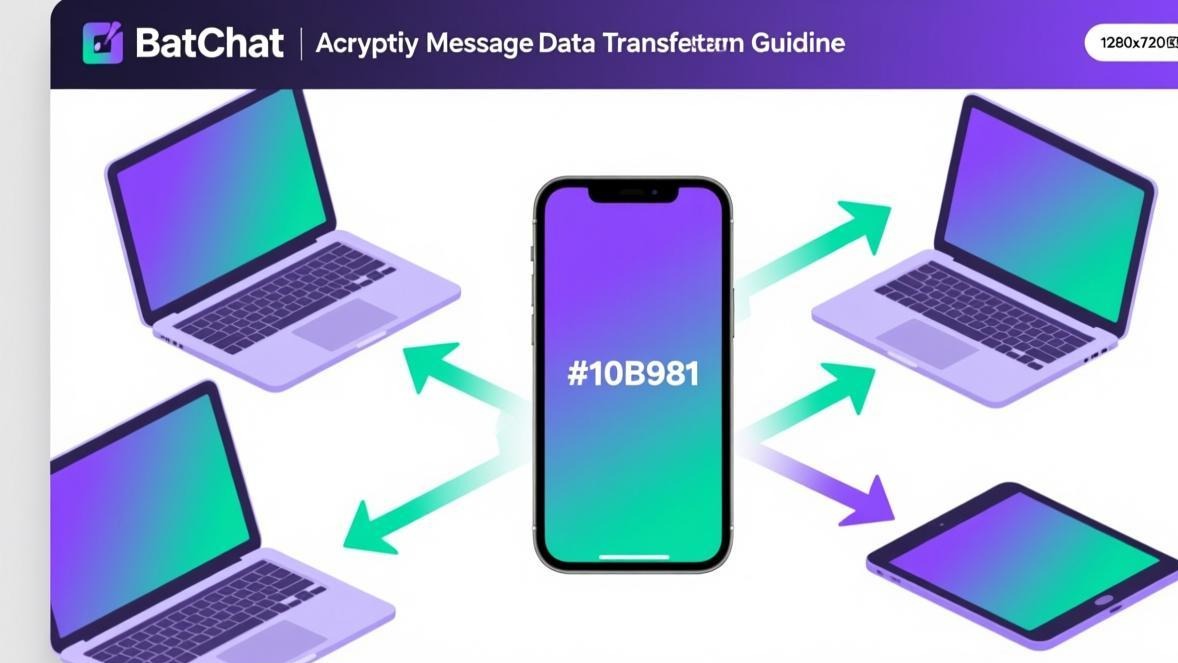
Switching phones is always a hassle, but migrating your encrypted messages doesn’t have to be. Unlike WhatsApp (which requires Google Drive backups) or Signal (which has limited history sync), BatChat makes data transfer surprisingly painless with its built-in multi-device sync.
The short version: install BatChat on your new phone, log in with the same account, and your chat history automatically syncs. No cloud backup services, no file transfers, no complicated export-import workflows.
But there’s more to it than that. This guide covers everything you need to know about BatChat data migration, including the sync mechanism, manual export options, media file management, and troubleshooting when things go wrong.
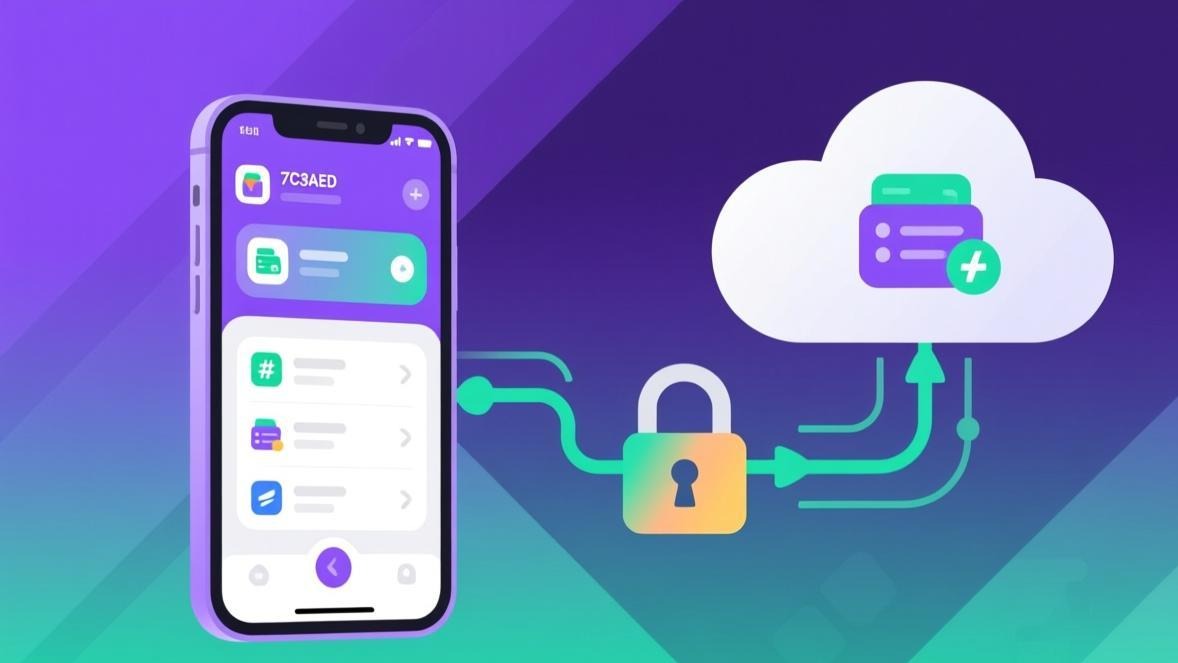
How BatChat Multi-Device Sync Works
BatChat supports Multi-Device Sync — you can be logged into the same account on your phone, computer, and tablet simultaneously. Messages sync in real-time across all connected devices.
What this means in practice:
- Messages received on your phone appear on your computer at the same time
- Messages sent from your tablet show up on your phone
- A new phone logs in and automatically pulls your entire chat history
Requirements for multi-device sync:
- All devices connected to the internet (WiFi or cellular)
- Latest version of BatChat installed on each device
- You have your login credentials (phone/email + password)
- Initial sync takes time depending on your chat history volume
Setting Up a New Device
Mobile (iPhone / Android)
-
Install BatChat on your new phone
- iPhone: App Store → search “BatChat”
- Android: Google Play → search “BatChat”, or download APK from batchat.com
-
Open BatChat → tap “Log in to existing account”
-
Enter your phone number or email address
-
Enter your password (or use biometric authentication)
-
Complete two-factor authentication if enabled
-
Chat history syncs automatically — a progress bar appears
Sync time varies from a few minutes to 10-15 minutes depending on how much chat history you have. Group chats with lots of media typically take longer.
Desktop (Windows / Mac)
- Visit batchat.com and download the desktop client
- Install and launch BatChat Desktop
- Choose “Log in to existing account”
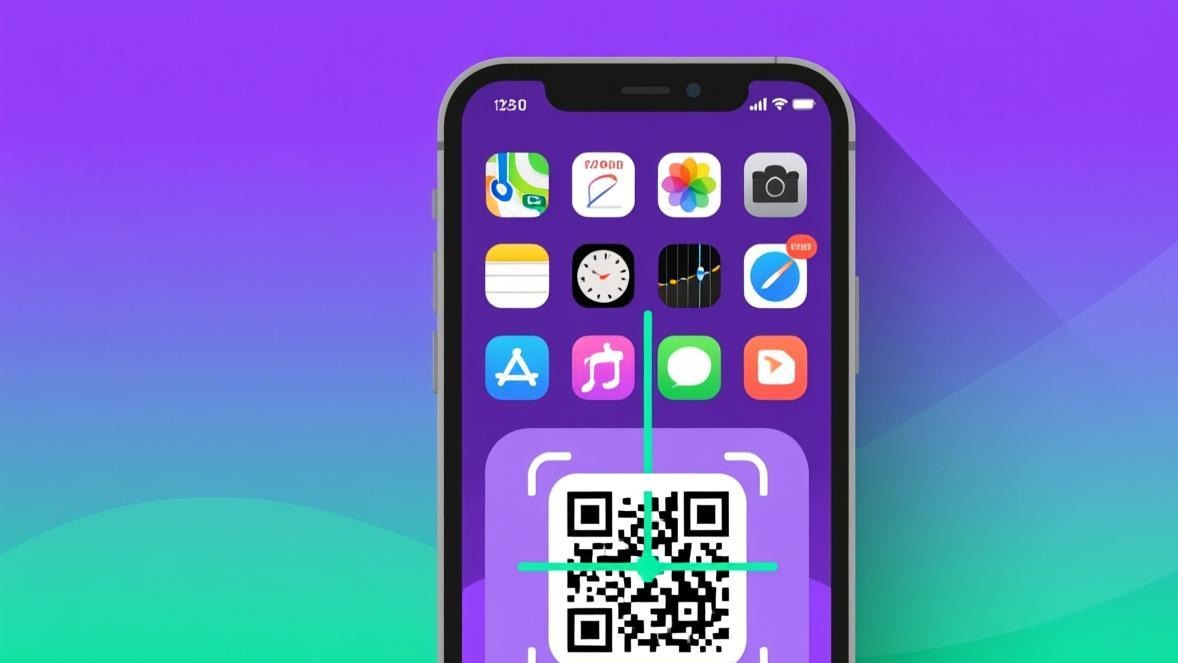
- Scan the QR code from your phone (similar to WhatsApp Web), or enter credentials directly
- Sync starts automatically
Desktop sync is usually faster than mobile since there’s no battery optimization throttling.
Tablet (iPad / Android Tablet)
Same process as mobile. Install BatChat, log in, wait for sync.
Manual Chat Export
Multi-device sync covers most use cases, but you might want to manually export chat records for:
- Permanent local backup (not tied to your BatChat account)
- Printing or legal documentation
- Moving to a different messaging platform
- Extra security against account issues
Export steps:
- Open the chat you want to export
- Tap the chat info/settings icon (top right)
- Find “Export chat history” or “Chat management”
- Choose format: TXT (plain text) or PDF (formatted)
- Select time range: all messages or a specific period
- Tap export → save to device
Format comparison:
| Format | Pros | Cons |
|---|---|---|
| TXT | Small file size, universal compatibility | No formatting, hard to read |
| Clean layout, good for printing | Larger file size, harder to edit |
What to Do Before Switching Phones
Follow this checklist to avoid losing any data during the transition:
Before switching:
- Install BatChat on your new device
- Verify you have your login credentials
- If two-factor auth is on, make sure you can receive the verification code
- Consider manually exporting critical chat records as a safety net
- Check that all pending messages have been sent (no red exclamation marks in chat)
After switching:
- Log into BatChat on the new device
- Wait for full sync to complete — be patient
- Spot-check important conversations for completeness
- Only then log out of the old device
Media File Management
BatChat’s multi-device sync primarily handles text messages. Media files have a different sync behavior:
- Images and videos: Thumbnails sync, but full-resolution files need to be downloaded individually
- Voice messages: Appear in the conversation but must be re-downloaded to play
- Files: File metadata syncs, but the actual file needs to be downloaded on each device
This design saves storage space on each device — not everyone needs every high-res photo on every device.
Storage-saving tips:
- Enable “auto-clear cache” in BatChat settings
- Set media auto-download to WiFi only
- Periodically clear unnecessary media files from chat settings
Troubleshooting Sync Issues
New device logged in but no chat history showing? Work through these common fixes:
Issue 1: Sync stuck or not starting
Symptoms: Progress bar frozen, or “Syncing…” displayed for a long time.
Fix:
- Confirm your device has a stable internet connection
- Try switching between WiFi and cellular data
- Disable VPN (it can block BatChat’s sync servers)
- Force-close BatChat and reopen to restart sync
Issue 2: Wrong account
Symptoms: Login successful but no chats appear at all.
Fix:
- Verify you’re using the same account (check phone number/email)
- If you registered with email, don’t try logging in with your phone number — these are separate accounts
- Check account info on your old device to confirm
Issue 3: Sync taking too long
Symptoms: Progress bar moving but extremely slowly.
Fix:
- More chat history = longer sync. This is normal
- Large group chats sync slower than private conversations
- If it’s been over 30 minutes, try force-closing BatChat and reopening
- As a last resort, uninstall and reinstall, then log in again
Issue 4: Missing messages after sync
Symptoms: Sync completed but some messages are missing.
Fix:
- Check if messages are complete on the old device
- Pull down on the chat list in the new device to trigger a re-sync
- Recent messages might take a few minutes to appear
- Very old messages may not sync (BatChat may limit historical sync range)
Issue 5: Media files showing as “loading”
Symptoms: Text messages synced but images/videos show placeholders.
Fix:
- This is expected behavior — media files download on demand
- Tap each image/video to download the full version
- Check your auto-download settings if you want media to download automatically
- Make sure you have enough storage space on the new device
Do I need to back up before switching phones?
No. BatChat’s multi-device sync handles everything automatically. However, if you want extra peace of mind, manually export your most important chats (TXT or PDF) before switching. It takes a few minutes and serves as insurance against unexpected issues.
How many devices can be online at the same time?
BatChat supports simultaneous login on mobile, desktop, and tablet. The exact device limit may vary by version, but typically supports 3-5 devices online at once. If you hit the limit, you’ll need to log out of an old device first.
Why do images need to be re-downloaded on new devices?
To conserve storage space, BatChat doesn’t automatically download full-resolution media to every device. Text and thumbnails sync immediately, but high-res files download on demand. You can adjust auto-download settings (WiFi only, for example) in the app settings.
What if I forget my BatChat password?
Tap “Forgot password” on the login screen and reset it via your registered phone number or email. If you didn’t link a recovery method (unlikely since it’s required during registration), you’ll need to contact BatChat support.
How does BatChat’s sync compare to Signal?
Both support multi-device sync with end-to-end encryption, but the implementation differs. Signal requires pairing new devices from the primary device (QR code verification). BatChat lets you log in directly with credentials — simpler but slightly less secure if your password is compromised. Signal also limits how much history syncs to new devices, while BatChat typically syncs a more complete history.