
BatChat markets itself as one of the most secure messaging apps on the market. End-to-end encryption, self-destructing messages, screenshot protection — the feature list sounds bulletproof. But here is what most users miss: every single security feature in BatChat requires manual activation. Download the app, sign up, and start chatting — you are running with the weakest security configuration possible.
This guide walks you through every security setting in BatChat, explains what each one actually protects against, and gives you the specific configuration that balances security with usability. No security jargon, no fear-mongering — just a practical checklist you can complete in 15 minutes.
This article is part of the BatChat tutorial series. For a broader overview of BatChat’s encryption capabilities, see our BatChat Encryption Explained.
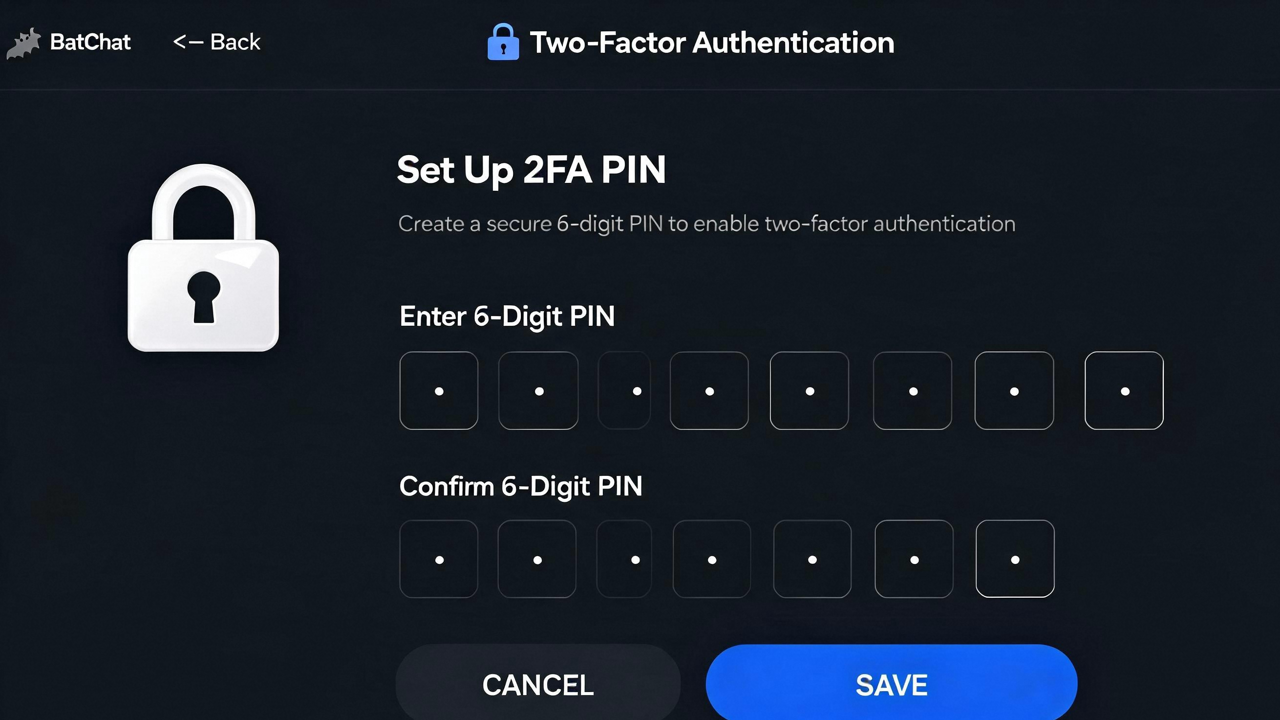
Two-Factor Authentication: Your First Line of Defense
Two-factor authentication is not just for your bank account. If someone guesses or steals your BatChat password, 2FA blocks them from logging in unless they also have your phone.
Enable it here: BatChat Settings → Account → Two-Factor Authentication → Enable. You will be asked to set a 6-digit PIN. Choose something random — not 123456, not your birthday, not any number sequence you use elsewhere.
The most common mistake with BatChat 2FA: people forget their PIN and lose access to their own account. BatChat does not store your PIN on its servers, meaning there is no “reset my PIN” button. Write it down somewhere safe, offline.
Device Management: Know Every Device Connected to Your Account
BatChat allows you to stay logged in on multiple devices. Convenient, yes — but every active session is a potential entry point if one of those devices gets compromised.
Check your active sessions: Settings → Device Management → Active Sessions. You will see a list of every device currently logged into your account, including location, device model, and last active time.
If you see a device you do not recognize, tap it and select “Terminate Session.” That device will be immediately logged out and cannot reconnect without your password and 2FA PIN.
Best practice: terminate sessions on devices you no longer use. That old phone you traded in six months ago might still have an active BatChat session.
Secure Backup and Data Transfer
BatChat does not back up your messages to the cloud — a deliberate privacy choice. But it does offer encrypted local backup that you can transfer to a new device.
Creating a backup: Settings → Chat → Backup → Create Backup. BatChat will generate an encrypted .bak file protected by a password you set. This password is the only way to decrypt the backup — BatChat cannot help you recover it.
Transferring to a new device: copy the .bak file to your new device, open BatChat → Settings → Chat → Restore Backup → select the file → enter your password.
Two things worth knowing: the backup file contains all your message history, including secret chats and media. And the encryption is AES-256, which is the same standard used by banks. The weak point is the password you choose — a four-character password can be brute-forced in seconds, while a 12-character random password is effectively uncrackable.
Anti-Screenshot and Screen Recording Protection
This is one of BatChat’s most underrated security features. When enabled, BatChat prevents other apps on your device from capturing your chats via screenshot or screen recording.
Enable: Settings → Privacy → Anti-Screenshot → ON.
On Android, this works by flagging the BatChat window as FLAG_SECURE, which blocks the system screenshot API. On iOS, it uses the screen recording notification API.
Limitations to understand: this protects against digital capture, not someone literally photographing your screen with another device. It also does not prevent the person you are chatting with from taking screenshots on their device. For screenshot-proof conversations on both sides, use Secret Chat mode instead.
For hands-on demos of BatChat’s more advanced features, check out BatChat Hidden Features and Power User Tips.
Disappearing Messages: The Right Way to Use Them
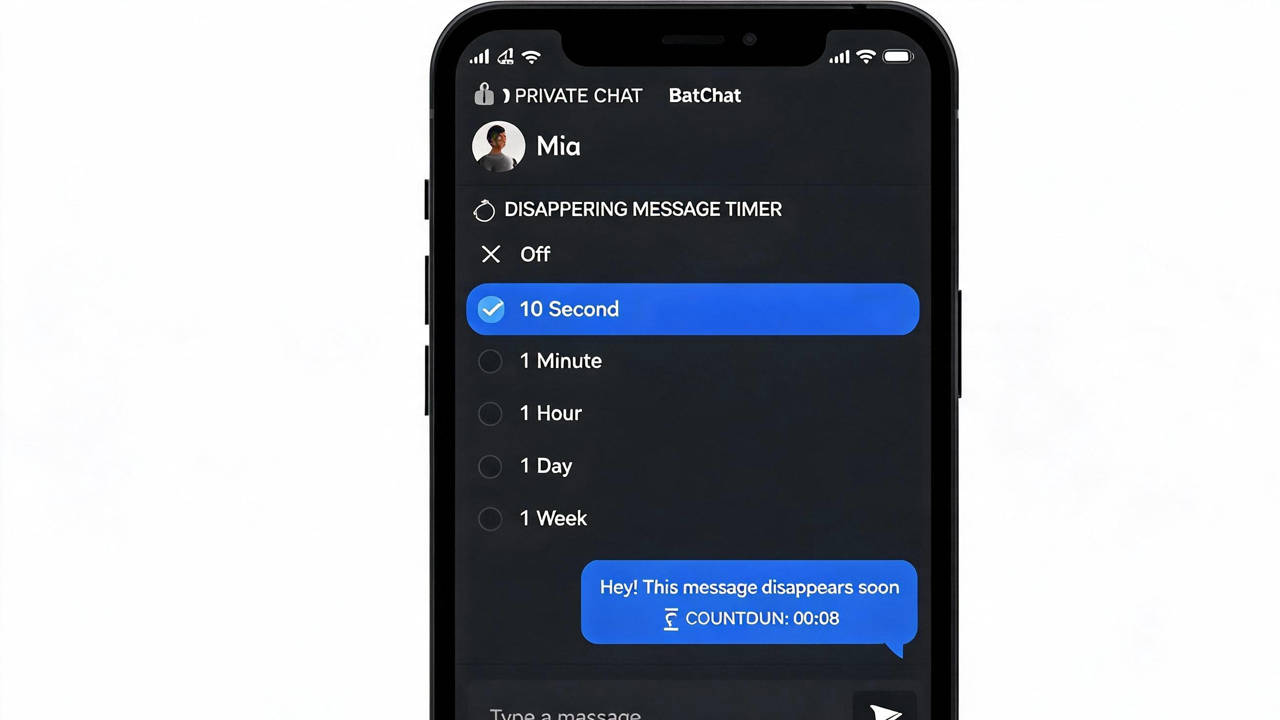
Enabling disappearing messages is straightforward: open a chat → tap the contact name → Disappearing Messages → set timer (5 seconds to 7 days). But most people misuse them.
The critical thing to know: disappearing messages only control how long a message remains visible. They do not retroactively delete messages that were already sent. If you enable a 24-hour timer today, only messages sent after you enable it will disappear after 24 hours. Messages from yesterday stay forever.
Also, the timer starts when the recipient views the message, not when it was sent. If you send a message with a 5-minute timer and the recipient does not open it for 3 hours, the timer starts counting down from the moment they open it.
Best practice for sensitive conversations: set the timer before you start discussing anything sensitive, and use Secret Chat (end-to-end encrypted, device-specific, no cloud sync) instead of regular chat for the highest security.
Common Questions
BatChatHub Home | Related: Encryption Guide | Secret Chat
Security is not a feature you install — it is a configuration you maintain. Spend 15 minutes going through this checklist once, and your BatChat account will be more secure than 95% of users. The remaining 5% is developing the habit of using Secret Chat for sensitive conversations and periodically checking your active sessions.