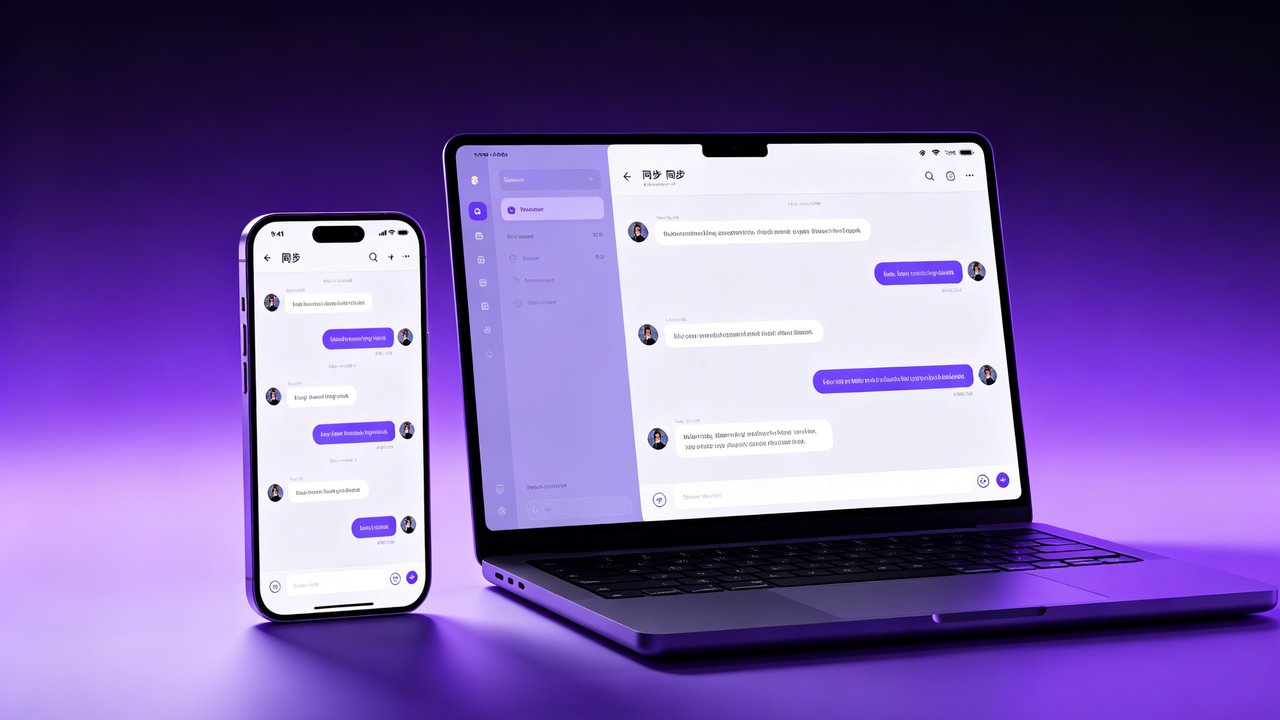
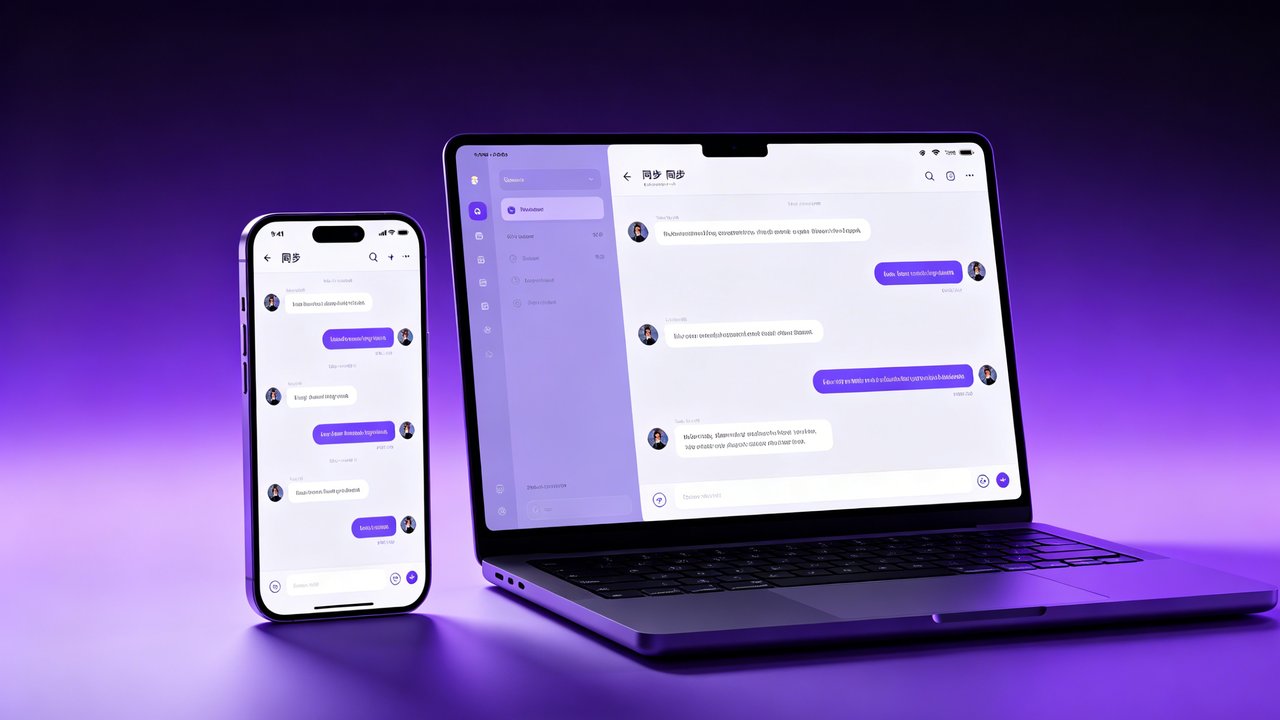
One of the first questions new BatChat users ask: “Can I use it on my phone and computer at the same time?” The answer is yes — but with some limits depending on your account type.
This guide covers everything about BatChat’s multi-device support: how many devices you can connect, what happens when you hit the limit, and how to manage sessions across all your devices.
Device Limits by Account Type
BatChat handles multi-device login differently from most messaging apps. Here’s how it breaks down:
| Feature | Free Account | VIP Account |
|---|---|---|
| Maximum devices | 3 | 5 |
| Mobile + Desktop | Yes, both | Yes, both |
| Simultaneous sessions | Yes | Yes |
| New device auto-kick | Kicks oldest | Kicks oldest |
| Session management | Limited | Full control |
| Login history | Last 3 | Full history |
Free users can have up to 3 devices logged in at the same time. Most people use two — a phone and a computer — so this limit rarely becomes an issue.
VIP users get 5 devices, which is useful if you have a work phone, personal phone, work laptop, personal laptop, and a tablet.
How to Log In on a New Device
The login process is the same regardless of how many devices you already have:
- Download and install BatChat on the new device (Android / iOS / PC / Mac)
- Open the app and enter your phone number
- Enter the verification code sent to your phone
- If you have a passcode set up, enter it
- Done — your chats sync automatically
The sync process usually takes a few seconds to a minute depending on your chat history size. You’ll see a loading bar while messages download from the encrypted server.
Important: BatChat uses end-to-end encryption. Your encryption keys are stored locally on each device. When you log in on a new device, a new key pair is generated. Existing messages are decrypted on the server and re-encrypted for the new device — this is why the initial sync takes a moment.
What Happens When You Hit the Device Limit
If you already have 3 devices (free) or 5 devices (VIP) logged in and try to add another:
Free accounts:
- The oldest active session gets automatically terminated
- You’ll see a notification on the kicked device: “Your account has been logged in on a new device”
- No warning before the kick happens
VIP accounts:
- Same behavior by default, but you can change this in settings
- VIP users can enable “Ask before kicking” mode — when a new device tries to log in, existing devices receive a confirmation prompt instead of being auto-kicked
Does Getting Kicked Delete My Chats?
No. Your message history is stored on the device. Getting kicked just means you’re logged out of your account. Open the app again and re-enter your verification code to log back in. All your local chats will still be there.
However, you won’t receive new message notifications while logged out. Messages sent to you during that time will sync when you log back in.
Managing Active Sessions
Checking which devices are currently logged into your account is straightforward:
Mobile (Android/iOS):
- Open BatChat → Settings (gear icon)
- Tap “Account” or “Privacy & Security”
- Tap “Active Sessions” or “Logged-in Devices”
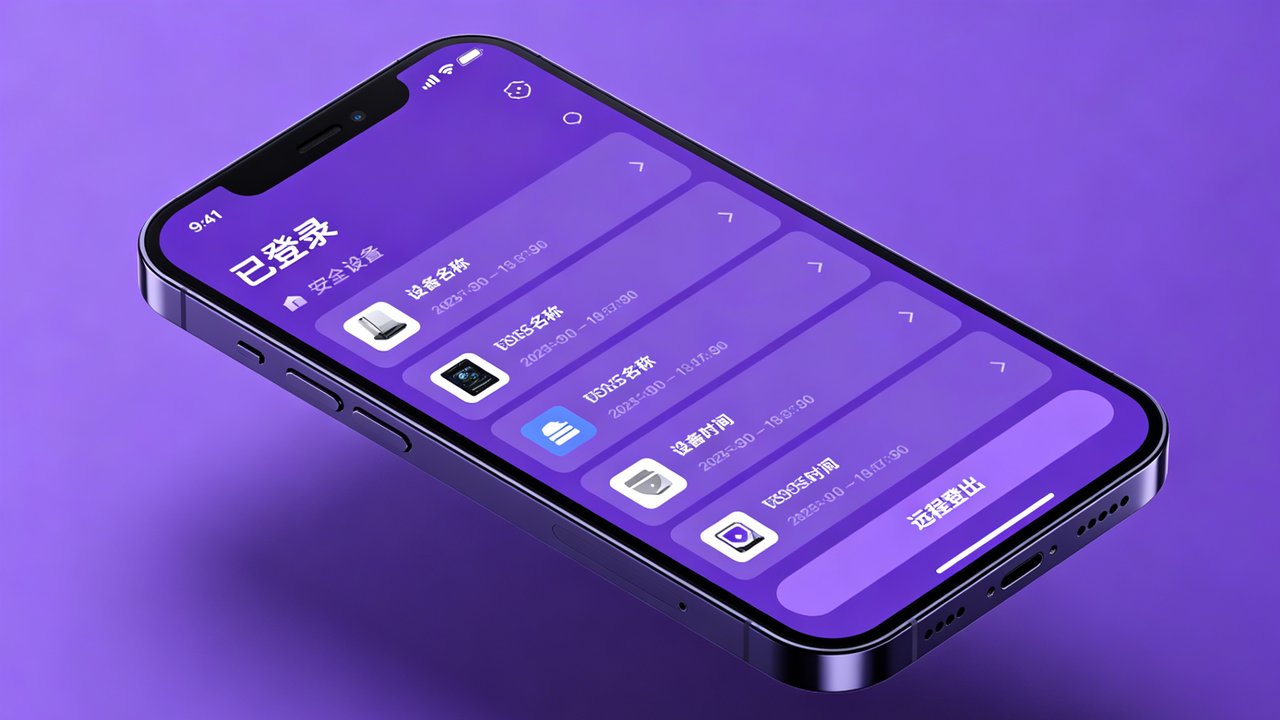
- You’ll see a list of all devices with device name, location, and last active time
Desktop (PC/Mac):
- Click the menu icon (three lines) → Settings
- Go to “Account” section
- Click “Session Management” or “Active Devices”
From this screen you can:
- Log out remotely: Tap the “X” or “Log out” button next to any device you don’t recognize
- See last activity: Check when each device was last used
- Identify devices: Each device shows its name (e.g., “iPhone 15 Pro”, “Windows Desktop”)
Security: What If Someone Logs Into Your Account?
If you see a device you don’t recognize in your active sessions:
- Immediately log it out using the remote logout feature
- Change your passcode in Settings → Privacy & Security → Change Passcode
- Enable two-factor verification if you haven’t already
- Check your privacy settings to make sure nothing has been changed
BatChat sends a notification to all your existing devices when a new device logs in. If you get this notification and it wasn’t you, act fast — someone has your phone number and verification code.
Tips for Multi-Device Users
Keep desktop notifications useful: On your PC/Mac, go to Settings → Notifications and configure which chats show desktop alerts. You probably don’t want every group chat popping up while you’re working.
Sync contacts once: When you first log in on desktop, BatChat asks for contact permission. Grant it once and your contact list syncs across all devices. No need to redo this.
Use different display names per device: Some users like to set different names or profile pictures on work vs personal devices. BatChat syncs your profile globally, so this isn’t possible — your name and avatar look the same everywhere.
Desktop search is faster: If you need to find an old message, use the desktop app. The search function on PC/Mac is noticeably faster than mobile, especially for large chat histories.
For more BatChat tutorials, check out the complete beginner guide or learn about data transfer between devices.