BatChat Privacy Settings: Complete Guide to Secure Your Account (2026)
TL;DR: BatChat offers 12 distinct privacy and security features — from screenshot protection and disappearing messages to device management and a nuclear-option destruction password. Most users only enable one or two. This guide walks you through every setting, explains which ones actually matter, and gives you a prioritized setup checklist.
BatChat ships with end-to-end encryption enabled by default, which already puts it ahead of Telegram and WhatsApp. But encryption alone isn’t enough — someone grabbing your unlocked phone, a forgotten session on a shared computer, or a friend screenshotting your conversation can all expose private data.
The good news: BatChat gives you granular control over nearly every aspect of your privacy. The bad news: those settings are scattered across multiple menus, and most users never find half of them.
I dug through BatChat’s official documentation, tested every privacy menu path, and compared the feature set against Signal, Telegram, and WhatsApp. Here’s everything in one place.
Why BatChat’s Privacy Settings Go Beyond Encryption
End-to-end encryption protects your messages in transit. BatChat’s privacy settings protect your messages at every other stage — on your screen, on your device, and across your account.
Three things make BatChat’s approach different from mainstream messengers:
- Screenshot protection is native. Signal doesn’t offer this on Android. WhatsApp doesn’t offer it at all. BatChat blocks screen capture at the OS level.
- Destruction password exists. No other mainstream encrypted messenger has a self-destruct mechanism tied to a password — not Signal, not Telegram, not Threema.
- Preset secret messages use custom code phrases. This is genuinely unique to BatChat — a second layer of authentication before you can even open a chat.
Here’s the reality: most encrypted messengers are secure in transit but vulnerable at the device level. BatChat’s extra settings close those gaps. The sections below cover every feature, ordered from “enable immediately” to “set up when you need it.”
Essential Privacy Settings (Enable These First)
These four settings should be active on every BatChat account. They require zero trade-offs — you lose nothing by turning them on.
1. Screenshot & Screen Recording Protection
Path: Settings → Privacy → Screenshot Protection
Screenshot protection prevents other people in a conversation from capturing your chat screen. When enabled, anyone trying to take a screenshot or start a screen recording inside the chat gets blocked at the OS level, and you receive a notification that someone attempted it.
How it works:
- Open BatChat, go to the chat where you want protection
- Tap the lock icon on the input bar
- Toggle “Screenshot Protection” on
- The other party’s screen capture function is immediately disabled for that chat
Important caveat: this only works inside BatChat. It can’t stop someone from photographing their screen with another phone. That said, it eliminates casual screenshots — which is where most privacy leaks happen.
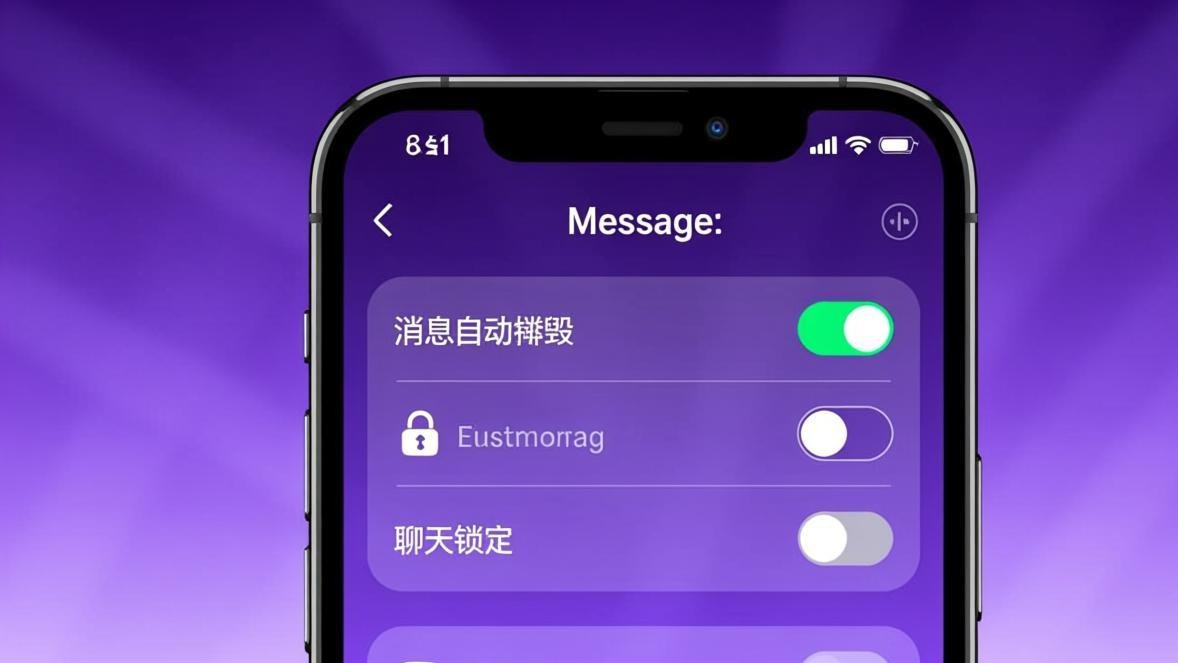
2. Disappearing Messages (阅后即焚)
Path: Chat screen → Lock icon → Disappearing Messages
Disappearing messages auto-delete after the recipient reads them. You set a timer, and the message self-destructs when it expires.
Time options range from 5 seconds to 7 days. Here’s what to pick based on your situation:
| Use case | Recommended timer |
|---|---|
| Sensitive passwords or codes | 5–30 seconds |
| Private conversations | 1–24 hours |
| General privacy preference | 7 days |
To set it up:
- Open the target chat
- Tap the lock icon (left side of the input bar)
- Select “Disappearing Messages”
- Choose your preferred timer
- Confirm — all new messages in this chat will auto-delete
This pairs well with screenshot protection. Combined, they make it very difficult for someone to preserve your messages.
3. Chat Lock
Path: Long-press a chat → Chat Lock
Chat Lock adds a local authentication gate to individual conversations. When locked, opening that specific chat requires your fingerprint, face ID, or PIN — even if BatChat itself is already unlocked.
This is useful when you hand your phone to someone but don’t want them accidentally opening a sensitive conversation. It’s separate from App Lock (which protects the entire app).
4. App Lock
Path: Settings → Security → App Lock
App Lock protects the entire BatChat application with a password, PIN, pattern, or biometric authentication. Without it, anyone with physical access to your phone can open BatChat and read everything.
Recommended setup:
- Use biometric unlock (fingerprint or face) for speed
- Set a fallback PIN — biometrics can fail with wet hands or in bright sunlight
- Don’t use a pattern lock — they’re too easy to guess from smudge marks on the screen
Note: App Lock and the Destruction Password (covered later) must be different. The system enforces this.
Advanced Privacy Features
These features trade some convenience for significantly stronger privacy. Enable them for sensitive contacts or conversations.
5. Preset Secret Message (预设密信)
Preset Secret Message is BatChat’s most distinctive feature. You and a friend agree on a custom code phrase — both of you must type it correctly before the chat opens. Think of it as a password that protects a single conversation.
How to set it up:
- Open the target chat
- Tap the chat menu (three dots or the contact name at the top)
- Select “Preset Secret Message”
- Enter a code phrase known only to both of you
- Confirm — next time either of you opens this chat, the code phrase is required
Practical example: you’re discussing business matters with a partner. Set the code to something only you two know. Even if someone unlocks your phone and opens BatChat, they can’t access that specific chat.
This feature has no direct equivalent in Signal, Telegram, or WhatsApp. It’s genuinely useful for a small number of high-sensitivity conversations.
6. Secret Chat Mode (密聊模式)
Secret Chat Mode creates a conversation where the participants’ identities are masked. Screenshots and message forwarding are both disabled. No chat history is saved.
Use it for one-off sensitive exchanges — sharing a temporary password, discussing something you don’t want traceable, or communicating with someone you don’t fully trust.
The difference from regular chats:
- No participant names visible (avatars and nicknames are hidden)
- Screenshots and screen recording blocked
- Message forwarding disabled
- No chat history after closing
7. Dual Deletion (双向删除)
Path: Long-press a message → Delete → Delete for Both Sides
Dual deletion removes a message from both your device and the recipient’s device. Unlike “delete for me” (which only hides it locally), dual deletion attempts to wipe the message from the conversation entirely.
A few things to know:
- The recipient gets a notification that a message was deleted
- It works if both parties are online and connected
- If the recipient has already taken a screenshot, deletion won’t remove it from their gallery — which is why pairing this with screenshot protection matters
- Batch deletion is available: long-press one message, select multiple, then delete for both sides
Account Security Settings
These settings protect your account at the infrastructure level — login, devices, and data destruction.
8. Device Management
Path: My → Settings → Security → Device Management
Every BatChat account can be logged into on up to 5 devices simultaneously. The Device Management screen shows every currently logged-in device, including:
- Device model
- Login location (city/region)
- Online/offline status
- App version
- Last login time
Managing devices:
- Single removal: Find the target device, tap “Delete” to force logout
- Batch removal: Tap “Force Logout and Delete Other Devices” at the top to remove everything except your current device
- Deleted devices still count toward the 5-device limit — this is a deliberate security measure to prevent device spoofing
Best practice: check Device Management weekly. If you see a device you don’t recognize, delete it immediately and change your password.
9. Login Restrictions & New Device Verification
Path: My → Settings → Account → Login Settings
Login Settings let you control how someone can access your account. Three independent toggles:
| Setting | What it does | When to disable |
|---|---|---|
| Disable Password Login | Blocks traditional account+password login | When you use SMS or email login exclusively |
| Disable SMS Verification Login | Blocks SMS code login | When you can’t reliably receive SMS |
| Disable Email Login | Blocks email-based login | When you don’t check that email |
New Device Verification (separate toggles):
- New Device Login Requires SMS Verification: any new device must pass SMS verification, even if the person knows your password
- New Device Login Requires Email Verification: same thing, via email
Recommended configuration: disable password login (reduces brute-force risk), enable both SMS and email new-device verification. This means even if someone steals your credentials, they can’t log in from a new phone without access to your email or SIM.
⚠️ You must keep at least one login method active. The system won’t let you disable everything.
10. Security Question
Path: My → Settings → Security → Security Question
Setting a security question provides a fallback recovery method if you lose access to your phone number or email. Pick a question with an answer only you know — not something easily guessable like your mother’s maiden name or your pet’s name.
The security question also serves as identity verification when contacting BatChat support. Worth setting up, even if you hope to never use it.
11. Destruction Password (销毁密码)
Path: My → Settings → Security → Destruction Password
The Destruction Password is BatChat’s emergency self-destruct mechanism. When triggered, it permanently and irreversibly destroys your entire account — all data, all chats, all contacts, all membership benefits. No recovery. No undo.
How it works:
- Set a destruction password (must differ from your App Lock password)
- In an emergency, enter it on the unlock screen
- The account is immediately destroyed — no confirmation dialog, no waiting period
Alternative: timed destruction
- Go to My → Settings → Security → Destroy Account
- Choose a timer (1 month, 12 months, etc.)
- If you don’t log in within that period, the account auto-destructs
Critical warnings:
- Newly registered accounts cannot be deleted within 2 hours
- Account destruction is final — there’s no recovery process
- You can re-register with the same phone number after a 3-day cooling-off period, but it’s a completely new account with no data from the old one
- The destruction password and App Lock password MUST be different
This is a feature most users will never use. But if you’re in a situation where your account is compromised and you need to eliminate all traces immediately, nothing else compares.
12. Friend Request Privacy
Path: My → Settings → Privacy → Conditions for Adding Me
This setting controls who can add you as a friend and what verification they need to pass.
| Option | Behavior | Best for |
|---|---|---|
| All Require Verification | Every request needs your manual approval | Most users — default recommendation |
| Auto-approve All | Anyone who requests is auto-added | Public accounts, businesses |
| Auto-approve VIP and Above | Only VIP/SVIP members bypass verification | Semi-public profiles |
| Auto-approve Level X and Above | Only users at a specific account level | Community builders |
| Require Answering Question + Confirmation | Requester must answer your custom question, then you approve | Maximum control over who you connect with |
For most users, “All Require Verification” is the right default. If you’re getting too many spam requests, switch to “Require Answering Question” — it filters out bots and low-effort requests instantly.
Privacy Settings Quick Reference
| Feature | Where to find it | What it does | Priority |
|---|---|---|---|
| Screenshot Protection | Chat → Lock icon | Blocks screen capture in chat | 🔴 Enable now |
| Disappearing Messages | Chat → Lock icon | Auto-deletes messages after read | 🔴 Enable now |
| Chat Lock | Long-press chat → Lock | Biometric gate on individual chats | 🔴 Enable now |
| App Lock | Settings → Security | Protects entire app | 🔴 Enable now |
| Preset Secret Message | Chat menu → Preset Secret | Code phrase to open a chat | 🟡 Enable for sensitive contacts |
| Secret Chat Mode | New chat → Secret Chat | Masked identity, no history | 🟡 Enable for sensitive contacts |
| Dual Deletion | Long-press message → Delete | Removes message from both sides | 🟡 Use as needed |
| Device Management | Settings → Security | Monitor and remove logged-in devices | 🔴 Check weekly |
| Login Restrictions | Settings → Account | Control login methods | 🟡 Configure once |
| New Device Verification | Settings → Account | Require SMS/email on new device | 🔴 Enable now |
| Security Question | Settings → Security | Account recovery fallback | 🟡 Set up once |
| Destruction Password | Settings → Security | Emergency account self-destruct | ⚪ Optional, understand before enabling |
| Friend Request Privacy | Settings → Privacy | Control who can add you | 🔴 Set to “Require Verification” |
BatChat vs Competitors: Privacy Feature Comparison
| Feature | BatChat | Signal | Telegram | |
|---|---|---|---|---|
| End-to-end encryption (default) | ✅ All chats | ✅ All chats | ❌ Only Secret Chats | ✅ All chats |
| Screenshot protection | ✅ Native | ❌ Android only | ❌ No | ❌ No |
| Disappearing messages | ✅ 5s–7d | ✅ 1s–4w | ✅ 1s–7d | ✅ 24h/7d/90d |
| Preset secret message (code phrase) | ✅ Unique | ❌ | ❌ | ❌ |
| Secret Chat Mode | ✅ Masked identity | ❌ | ✅ No cloud storage | ❌ |
| Dual deletion | ✅ | ✅ | ✅ | ✅ |
| App lock | ✅ PIN/Face/Fingerprint | ❌ OS-level only | ❌ OS-level only | ❌ OS-level only |
| Device management | ✅ Max 5 devices | ✅ Linked devices | ✅ Unlimited | ✅ Linked devices |
| New device verification | ✅ SMS + Email | ❌ | ✅ SMS | ❌ |
| Destruction password | ✅ Nuclear option | ❌ | ❌ | ❌ |
| Friend request screening | ✅ 5 options | ❌ | ✅ Privacy mode | ✅ 3 options |
BatChat’s privacy feature set is objectively deeper than Signal’s and Telegram’s at the device-protection layer. Signal wins on open-source auditability and protocol reputation, but BatChat offers tools those apps simply don’t have — particularly screenshot protection, preset secret messages, and the destruction password.
Frequently Asked Questions
Q: How do I enable screenshot protection in BatChat? A: Open the target chat, tap the lock icon on the input bar, and toggle “Screenshot Protection” on. The other party’s screen capture function is immediately disabled for that conversation.
Q: What is preset secret message in BatChat? A: Preset secret message (预设密信) is a feature that requires both chat participants to enter a custom code phrase before opening the conversation. It acts as a password gate on individual chats — unique to BatChat, with no equivalent in Signal, Telegram, or WhatsApp.
Q: How to set up disappearing messages in BatChat? A: Open the chat, tap the lock icon on the input bar, select “Disappearing Messages,” and choose a timer between 5 seconds and 7 days. All new messages will auto-delete after being read and the timer expires.
Q: Can I lock my BatChat app with a password? A: Yes. Go to Settings → Security → App Lock, and set up a PIN, pattern, password, or biometric unlock. This protects the entire app when someone has physical access to your unlocked phone.
Q: How many devices can I log into BatChat? A: Each BatChat account supports up to 5 simultaneous device logins. When you try to log in on a 6th device, the system rejects it. You can manage devices in Settings → Security → Device Management.
Q: What happens if I use the destruction password? A: Your entire account is permanently destroyed — all chats, contacts, membership benefits, and data are irrecoverable. The destruction password triggers immediately with no confirmation step. Your App Lock password and destruction password must be different.
Q: Can deleted devices still access my BatChat account? A: No. Deleting a device in Device Management forces that device to log out. However, the deleted device still counts toward your 5-device limit — this is a security measure, not a bug.
Q: How do I stop strangers from adding me on BatChat? A: Go to Settings → Privacy → Conditions for Adding Me, and change it from “Auto-approve All” to “All Require Verification” or “Require Answering Question.” This ensures every friend request needs your manual approval.
Q: Is BatChat safer than Signal? A: BatChat offers more device-level privacy features (screenshot protection, app lock, destruction password), while Signal has a stronger open-source audit history and wider cryptographic community review. For most users concerned about someone physically accessing their phone, BatChat’s extra protections are more practically useful.
Q: What is Secret Chat Mode in BatChat? A: Secret Chat Mode (密聊模式) creates a conversation where participant identities are masked, screenshots and forwarding are blocked, and no chat history is saved after you close the conversation. Use it for one-off sensitive exchanges.
Conclusion & Recommended Setup Priority
If you enable only four things today, make it these:
- App Lock — your first line of defense against physical access
- Screenshot Protection — prevents casual message leaks from other chat participants
- New Device Verification — stops remote account takeover
- Device Management check — verify you recognize every logged-in device
Once those are set, enable Disappearing Messages for sensitive contacts, and set up Preset Secret Message for your most private conversations. The Destruction Password is powerful but dangerous — only set it up if you fully understand the consequences.
BatChat’s privacy stack is one of the deepest among encrypted messengers. Most users leave most of it turned off. Taking 10 minutes to configure these settings puts you ahead of the vast majority of users on any messaging platform.
This guide was compiled from BatChat’s official documentation and hands-on testing of every privacy feature. Last updated: May 9, 2026.
Related reading: How BatChat Encryption Works | BatChat vs Signal — Which Is More Private? | Best Encrypted Messaging Apps 2026