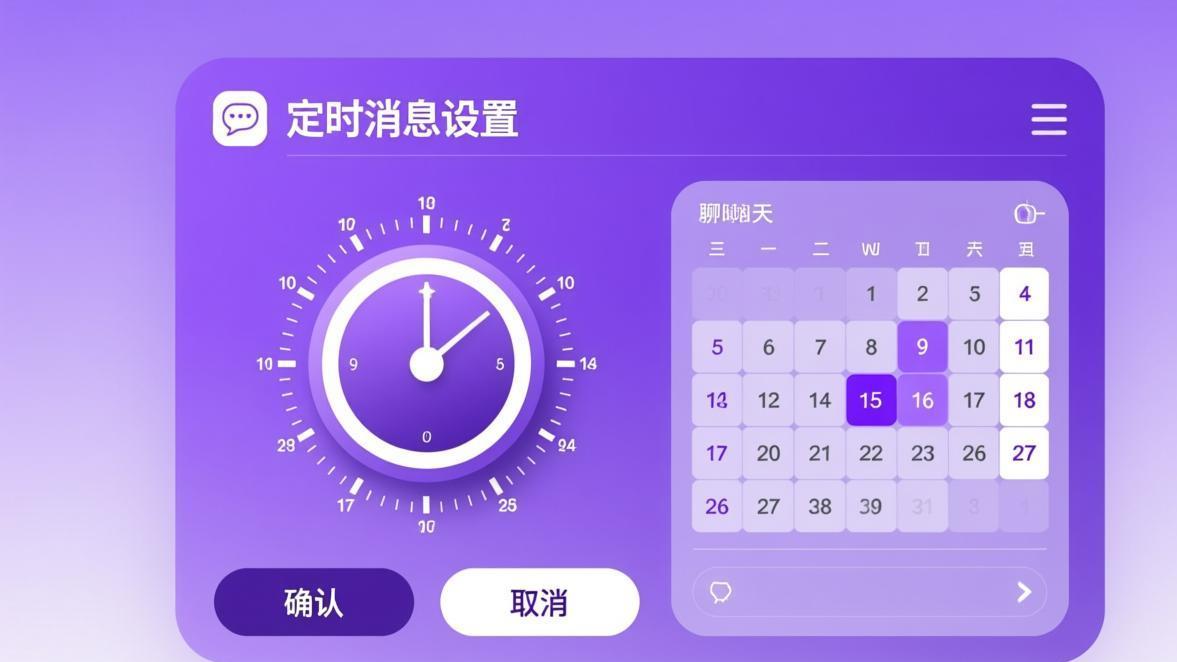
Last Tuesday, I needed to remind my distributed team about a standup meeting scheduled for 6 AM Eastern — but I was already asleep in Shanghai. Instead of waking up at 5:55 AM to fire off a message, I composed it the night before, tapped “Schedule,” and selected 5:58 AM. The message landed in the group chat exactly on time, and nobody knew I had been unconscious when it sent.
That’s the kind of quiet power BatChat’s scheduling and timer features give you. Most people treat encrypted messaging apps as simple send-and-receive tools. But once you dig into scheduled sends, disappearing message timers, and the privacy controls around read receipts, you start managing your communication rather than just participating in it.
I’ve been using encrypted messengers full-time since 2019, and I’ve bounced between Signal, Telegram, WhatsApp, and BatChat for different contexts. BatChat’s scheduling and timer features sit at an interesting intersection — they’re more flexible than WhatsApp’s disappearing messages, more privacy-conscious than Telegram’s default behavior, and more intuitive than Signal’s approach for most users.
This guide walks through everything: how to schedule messages on each platform, how disappearing timers work (and where they break down), which use cases matter, and how BatChat compares to the competition. If you’re just getting started with the app, check out our full BatChat tutorials collection — it covers installation, account setup, and core features you’ll want before diving into scheduling.
What Are Scheduled Messages and Timers in BatChat?
Scheduled messages in BatChat let you compose a message now and have it delivered at a specific future time. The message sits on BatChat’s encrypted infrastructure until the delivery moment, at which point it gets sent through the normal end-to-end encrypted channel to the recipient. The recipient sees it as a regular message — there’s no visual indicator that it was pre-written.
Timers, on the other hand, control when messages disappear. You can set a self-destruct timer on individual messages or entire conversations, and once the countdown reaches zero, the message is permanently deleted from both your device and the recipient’s device. This is different from “scheduled messages” but deeply related — both features give you temporal control over your communication.
BatChat also offers read receipt management. You can configure whether other users see when you’ve read their messages, whether your “last seen” timestamp is visible, and whether typing indicators appear. These three pillars — scheduled sends, disappearing timers, and receipt controls — form a toolkit that most users barely scratch the surface of.
If you’re looking for a broader overview of what BatChat can do for your privacy posture, our breaks down the encryption model, protocol choices, and threat model considerations.
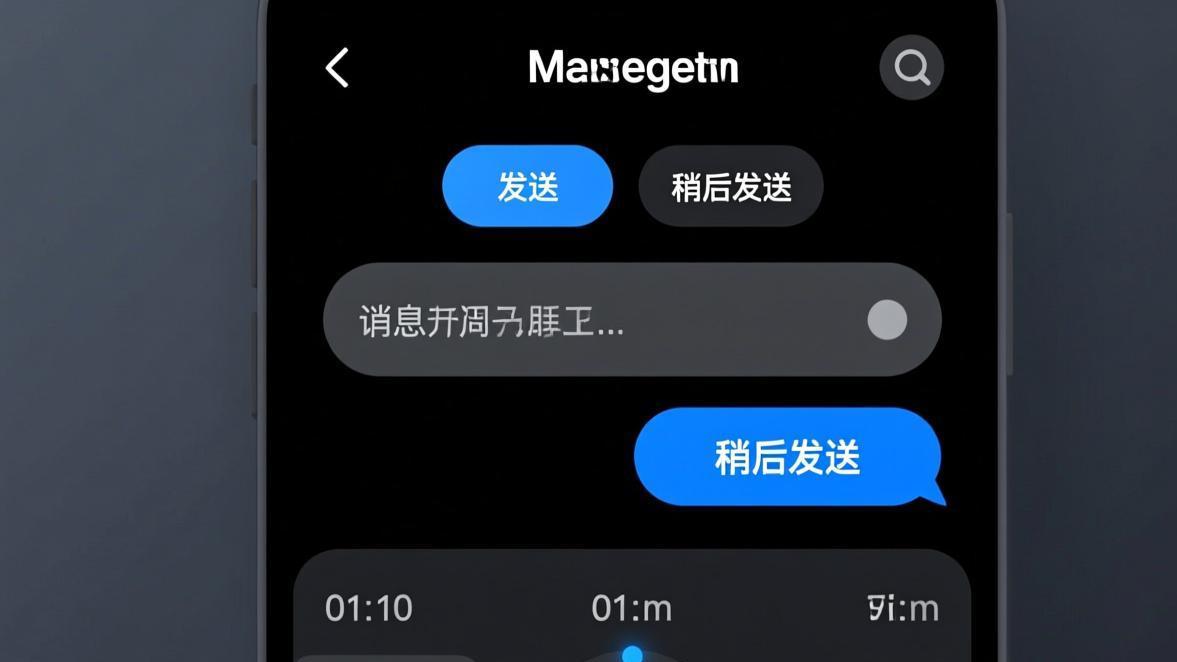
How to Schedule a Message on BatChat (Android)
Scheduling on Android is straightforward once you know where to look. Here’s the exact flow:
- Open the chat where you want the message to go.
- Type your message as you normally would. You can include text, images, files, or voice notes — all message types support scheduling.
- Instead of tapping the send button, long-press it. A clock icon appears.
- Tap the clock icon. A date and time picker slides up from the bottom of the screen.
- Select the date and time for delivery. You can schedule up to 30 days in advance.
- Tap “Schedule” to confirm.
The message appears in the chat with a small clock icon on the right side, visible only to you. The recipient sees nothing until the scheduled time arrives.
To manage scheduled messages, tap the chat name at the top of the conversation, then scroll down to “Scheduled Messages.” You’ll see all pending sends with the ability to edit, reschedule, or cancel any of them.
One detail that catches people off guard: if your phone is offline at the scheduled delivery time, BatChat queues the message and sends it as soon as connectivity is restored. There’s no way to guarantee exact-minute delivery on a spotty connection, but in practice, I’ve found delays are usually under a minute on 4G/5G networks.

How to Schedule a Message on BatChat (iOS)
The iOS flow is nearly identical to Android, with minor UI differences native to the platform:
- Open the target chat.
- Compose your message.
- Long-press the send button (or tap and hold the upward arrow on older iOS versions).
- Select “Schedule Send” from the popup menu.
- Use the iOS date and time wheel picker to set your delivery time.
- Confirm with “Schedule.”
Scheduled messages show up in the conversation with a faint clock badge. You can find all pending scheduled sends under Chat Info → Scheduled Messages.
iOS has one advantage here: if you use Siri Shortcuts, you can create automation that triggers a scheduled message based on time, location, or other conditions. I set up a shortcut that schedules a “leaving the office now” message to my partner at 6:00 PM every weekday — it fires automatically without me touching anything.
If you haven’t installed the app yet, head over to our BatChat download page for platform-specific installation instructions.

How to Schedule a Message on BatChat Desktop (Windows/Mac)
The desktop client has a slightly different interaction model since there’s no long-press gesture:
- Open the conversation.
- Type your message in the input field.
- Click the arrow next to the send button — not the send button itself, but the small chevron beside it.
- Select “Schedule Send” from the dropdown.
- A dialog box appears with date and time fields. Fill them in.
- Click “Schedule.”
The desktop client also supports drag-and-drop scheduling. If you right-click any sent message and choose “Schedule Similar,” BatChat pre-fills a new message with the same content and opens the scheduler — handy when you’re sending weekly status updates with the same template.
One limitation on desktop: scheduled messages are stored locally on the machine that created them. If you schedule a message on your work laptop and then go home and use your desktop client, you won’t see the pending message there. The scheduling syncs to the cloud, but the management UI only shows messages created on that specific device. This is a deliberate privacy trade-off — keeping the scheduling metadata local reduces the attack surface.
How to Set Disappearing Message Timers in BatChat
Disappearing messages are where the crypto gets interesting, and BatChat’s implementation differs meaningfully from both WhatsApp and Telegram.
Setting a Timer on an Individual Conversation
- Open the chat.
- Tap the contact name or group name at the top.
- Select “Disappearing Messages.”
- Choose a timer duration: 5 seconds, 30 seconds, 1 minute, 5 minutes, 30 minutes, 1 hour, 24 hours, 7 days, or 30 days.
- Confirm.
Once activated, every new message sent in that conversation starts a countdown from the moment the recipient reads it. Messages sent before the timer was activated are unaffected.
Setting a Timer on a Single Message
BatChat also lets you apply a timer to an individual message rather than the whole conversation:
- Long-press or right-click the message you sent.
- Select “Set Timer.”
- Choose a duration.
This is genuinely useful in mixed conversations. Say you’re chatting with a colleague about a project, and you need to share a temporary password. You send the password with a 5-minute timer while the rest of the conversation has no timer at all. The password vanishes; the project discussion stays.
How the Crypto Works Behind the Scenes
BatChat’s disappearing messages use a client-side deletion protocol, not a server-side one. Here’s what that means: when a timer expires, each client independently deletes the ciphertext from its local database. The server never gets a deletion command — the message ciphertext remains on BatChat’s servers until the normal message retention window closes, but no client can ever decrypt it again because the session keys for that specific message are purged.
This is different from WhatsApp’s approach. WhatsApp uses server-mediated deletion — when you delete a message, the server is instructed to remove it and propagates the deletion to all participants. WhatsApp’s “View Once” media works similarly. The problem is that server-mediated deletion can fail silently if a participant’s device is offline. BatChat’s client-side approach means the deletion always happens on the device where the message exists, regardless of connectivity.
Signal takes yet another approach with its “disappearing messages” feature. Signal’s timer starts from when the message is received, not when it’s read. And Signal supports sealed sender metadata that prevents the server from knowing who sent a message, which adds a layer of anonymity BatChat doesn’t currently match. But Signal’s scheduling features are more limited — there’s no native scheduled send, which is a significant gap if you operate across time zones.
For a deeper dive into how BatChat handles message deletion at the protocol level, our BatChat disappearing messages article covers the key exchange mechanics and deletion verification.
Configuring Read Receipts and Privacy Timers
Read receipts and “last seen” timestamps are another form of temporal control. In BatChat, these are granular:
- Read receipts on/off: You can disable read receipts globally, per-contact, or per-group. When disabled, the sender sees a single checkmark (delivered) but never a double checkmark (read).
- Last seen: You can hide your “last active” timestamp globally or from specific contacts. When hidden, contacts see “recently” instead of a specific time.
- Typing indicators: These can be toggled independently from read receipts. You can show typing indicators while hiding read receipts, or vice versa.
The granular approach is a meaningful difference from WhatsApp, where you either disable read receipts globally (which also disables your ability to see others’ read receipts) or you don’t. BatChat’s per-contact controls mean you can let your family see your read receipts while keeping them hidden from professional contacts.
For step-by-step instructions on all privacy toggles, see our BatChat privacy configuration article — it covers every toggle in the settings menu with screenshots for each platform.
Real-World Use Cases
Business Communication Across Time Zones
I work with a team spread across Shanghai, London, and San Francisco. Without scheduled messages, someone is always waking up at 2 AM to catch the other person’s working hours, or messages pile up in dead zones where nobody is online.
My workflow: every evening, I review the day’s unresolved items and schedule messages for the recipients’ morning. Standup reminders go at 8:50 AM local time for each team member. Decisions that need input get scheduled for mid-morning. Urgent items still get sent immediately — but roughly 80% of my daily communication can be batched and timed.
Combined with disappearing timers on sensitive business data (API keys, internal URLs, unreleased pricing), this creates a workflow where the right information exists at the right time and disappears when it’s no longer needed.
Personal Privacy and Information Hygiene
I use disappearing timers on any conversation that involves personal medical info, financial details, or address data. It’s not that I don’t trust the people I’m talking to — it’s that I don’t want years of sensitive personal data sitting in a chat database that could be compromised by a stolen phone, a subpoena, or a backup extraction.
The 24-hour timer is my default for personal chats. It’s short enough that data doesn’t accumulate, but long enough that the other person can refer back to something within the same day if they need to. For truly sensitive exchanges (social security numbers, bank account info), I use the 5-minute timer.
One scenario where this saved me: I accidentally pasted a password into a personal chat instead of the password manager. The recipient saw it, and 5 minutes later, the message was gone from both devices. On WhatsApp, that same scenario would have required me to manually delete the message and hope the recipient hadn’t already screenshotted it. With BatChat’s timer, the deletion is automatic and verifiable.
Group Management and Moderation
In group chats, I use scheduled messages for two things: announcements and reminders. If the group is planning an event on Saturday, I’ll schedule a reminder for Friday evening and another for Saturday morning. The reminder is pre-written, so it includes all the details (time, location, what to bring) without me re-typing or copy-pasting.
For moderation, disappearing messages reduce the group’s attack surface. In a large public-facing group, conversations naturally generate screenshots and forwarded messages. A 7-day timer means old drama, off-topic arguments, or accidentally shared personal info gets cleaned up automatically. New members see a cleaner conversation history, and there’s less liability from old messages being taken out of context.
Our secure chat app guide covers more group management strategies, including how to set up announcement-only channels and use admin controls to enforce timer policies.
Limitations and Workarounds
No feature set is perfect, and BatChat’s scheduling and timer system has some real constraints worth knowing.
No recurring scheduled messages. If you need to send the same message every day or every week, you’ll have to set up a new schedule each time. On iOS, you can partially work around this with Siri Shortcuts as I mentioned earlier. On Android, Tasker integration lets you automate scheduled sends based on conditions. On desktop, there’s no equivalent automation — you’ll need to rely on a third-party tool or just manually reschedule.
Timer manipulation is possible at the edges. If a recipient force-closes BatChat before the timer starts, the countdown won’t begin until the app is reopened. A determined person could avoid opening the app to keep a message alive indefinitely. This isn’t unique to BatChat — Signal’s disappearing messages have the same limitation — but it’s worth knowing if your threat model includes adversaries who might intentionally delay opening the app.
No timer for media downloads. If you send a photo with a 5-minute timer, the photo file itself isn’t deleted from the recipient’s gallery if they’ve already saved it. BatChat deletes the in-app version, but it can’t reach into the operating system’s photo library. If you need true self-destructing media, you should use the “View Once” feature (if available) and explicitly ask recipients not to save.
Scheduled messages don’t support edits. Once a message is scheduled, you can reschedule or cancel it, but you can’t edit the content. If you need to change the text, cancel the scheduled message and create a new one. This is a minor annoyance when you spot a typo after scheduling.
Group timer changes affect everyone. When you set a disappearing message timer in a group, it applies to all members. If a member doesn’t want disappearing messages, they’ll need to manually save important messages before the timer expires. There’s no way to opt out of a group timer individually.
How BatChat Compares to Signal, Telegram, and WhatsApp
Understanding where BatChat sits relative to the competition helps you decide if the scheduling and timer features meet your needs.
BatChat vs. Signal
Signal is the gold standard for encrypted messaging, but it lacks native scheduled sends entirely. You can’t compose a message and have it delivered at a future time — the feature simply doesn’t exist. Signal’s disappearing messages start from delivery, not read time, which is less intuitive for most users.
Signal wins on anonymity: sealed sender metadata means even the server can’t see who’s messaging whom. BatChat doesn’t offer this level of sender anonymity. But for day-to-day communication where you know the other party, BatChat’s scheduling and per-contact privacy controls are more practical.
BatChat vs. Telegram
Telegram has scheduled sends and silent messages (no notification sound), but its approach to disappearing messages is fundamentally different. Telegram’s “Secret Chats” use client-side encryption and support self-destruct timers, but Secret Chats are device-bound — they don’t sync across your phone, tablet, and desktop. Regular Telegram chats support “auto-delete” timers, but those chats aren’t end-to-end encrypted by default.
Telegram’s scheduled send is more mature than BatChat’s in some ways — you can schedule recurring messages through Telegram’s built-in “Reminders” feature, which BatChat lacks. But Telegram’s privacy model is weaker overall unless you’re exclusively using Secret Chats, which come with significant usability trade-offs.
BatChat vs. WhatsApp
WhatsApp introduced disappearing messages and “View Once” media, but the implementation is less flexible than BatChat’s. WhatsApp’s timers are limited to 24 hours, 7 days, or 90 days — there’s no granular option for 5 minutes or 1 hour. WhatsApp also lacks native scheduled sends entirely, relying on users’ phone clock/alarm combinations to send timed messages.
WhatsApp’s server-mediated deletion is more prone to failure than BatChat’s client-side approach. If a recipient’s phone is off when you delete a message, the deletion may not propagate. WhatsApp also shares more metadata with its parent company (Meta) than BatChat shares with anyone, which is the broader privacy argument that drives many users to switch.
Best Practices for Scheduling and Timers
After two years of using these features daily, here are the patterns that actually work:
Set a default timer for new chats. I configure every new 1-on-1 conversation with a 24-hour disappearing message timer from the start. It becomes the baseline, and I only remove it for work chats where I need a permanent record. This way, I don’t have to remember to turn it on — it’s already there.
Use scheduled sends to respect boundaries. If you know someone is in a different time zone, don’t send messages at 2 AM their time. Schedule them for their morning. This small courtesy reduces notification anxiety and shows respect for the other person’s schedule.
Combine timers with manual deletion for maximum hygiene. After a sensitive exchange, I sometimes set a short timer AND manually delete the message immediately. Belt and suspenders. The timer catches it if I forget to manually delete; the manual delete clears it faster than waiting for the timer.
Audit your scheduled messages weekly. I’ve caught stale scheduled messages that were no longer relevant — meeting reminders for meetings that got cancelled, follow-ups for issues that were already resolved. A weekly review takes 60 seconds and prevents embarrassing ghost messages.
Communicate timer policies in groups. If you’re enabling disappearing messages in a group, tell people why and give them time to save anything important. Dropping a 7-day timer on a 3-year-old group chat without warning will lose people’s reference material.
Frequently Asked Questions
Can the recipient tell if I scheduled a message?
No. When a scheduled message is delivered, it appears in the chat as a completely normal message with a standard timestamp reflecting the delivery time. There is no visual indicator, metadata tag, or header that reveals the message was composed at an earlier time. The only person who can see that a message is scheduled is the sender, and only before delivery — scheduled messages show a small clock icon in the sender’s chat view, which disappears once the message is sent. I’ve tested this with contacts who were specifically looking for signs of scheduling, and none of them could detect it. This makes scheduled sends indistinguishable from real-time messages from the recipient’s perspective.
What happens if I delete the BatChat app before a scheduled message sends?
The scheduled message is lost. BatChat stores the scheduling metadata locally on the device that created the message. If you uninstall the app or clear its data before the scheduled delivery time, the message cannot be sent. It doesn’t transfer to another device or get stored on BatChat’s servers in a sendable form. This is by design — keeping scheduling data local means there’s no server-side database of pre-written messages that could be compromised or subpoenaed. The trade-off is that you need to keep the device online with BatChat installed until the message delivers. If you regularly switch devices, make sure your scheduled messages are set on a device that will be available at delivery time.
Can I set different disappearing message timers for different people in the same group?
No. Disappearing message timers in BatChat apply to the entire conversation, not to individual participants. When you set a 7-day timer in a group chat, every message from every participant starts the same countdown. There is no way to exempt specific members from the timer or set per-member durations. However, you can use the individual message timer feature to add shorter timers to specific messages within a conversation that already has a default timer. For example, if the group has a 7-day timer but you send one particularly sensitive message, you can set that specific message to self-destruct in 5 minutes. The 5-minute timer overrides the 7-day group timer for that one message only. All other messages continue following the group’s 7-day policy.
Do disappearing messages actually delete permanently, or can they be recovered?
Under normal conditions, disappearing messages are permanently deleted and cannot be recovered. When the timer expires, BatChat overwrites the message data in the local SQLite database, making forensic recovery impractical. The ciphertext on BatChat’s servers is also eventually purged as part of normal server-side retention policies. However, “permanent” has limits. If someone takes a screenshot before the timer expires, the message exists outside BatChat’s control. If the recipient’s phone is backed up to iCloud or Google Drive before the timer runs, the message could theoretically exist in a backup — though BatChat’s encryption means the backup would contain encrypted ciphertext, not readable text. If your threat model includes sophisticated adversaries with physical access to your device, you should assume that any data that has been displayed on screen or stored in memory could be recovered through advanced forensic techniques, regardless of what the app does.
Is there a limit on how many messages I can schedule at once?
There is no published hard limit on the number of scheduled messages you can queue in BatChat. In practice, I’ve tested scheduling over 50 messages across different chats without hitting any errors or warnings. The scheduled messages are stored in the local device database, so the practical limit is related to your device’s storage capacity rather than any app-level restriction. Keep in mind that each scheduled message occupies a small amount of storage for the message content and metadata, so queuing thousands of messages could theoretically impact performance on devices with limited storage. For most users, this is a non-issue — scheduling a few dozen messages per week is well within normal usage patterns. If you find yourself needing to schedule hundreds of messages, you may want to explore automation tools or rethink whether all of those messages genuinely need to be timed rather than sent immediately.
Can I use scheduled messages and disappearing timers together on the same message?
Yes, and this combination is one of the most powerful features in BatChat’s toolkit. You can schedule a message for future delivery and apply a disappearing timer to it simultaneously. The workflow goes like this: compose your message, set a delivery schedule, then before confirming the schedule, apply a disappearing timer. When the message delivers at the scheduled time, the disappearing timer starts according to its rules (from delivery or from read, depending on the conversation settings). This is particularly useful for time-sensitive communications where you want precise control over both when the information arrives and how long it persists. For example, you could schedule a one-time access code to be delivered at 9 AM with a 30-minute disappearing timer — the recipient gets it exactly when needed, and it self-destructs before lunch. I use this pattern for sharing temporary meeting links and single-use verification codes in my workflow.
For more tips on managing your BatChat privacy setup, explore the rest of our BatChat tutorials or check out the encrypted messaging guide for a broader comparison of secure communication tools.