
Managing a BatChat group effectively goes beyond just creating a chat room. Whether you’re running a team of 20 or a community of 2000, understanding BatChat’s group management tools makes a huge difference in keeping conversations productive and members engaged. BatChat has over 5 million active users worldwide. End-to-end encryption uses AES-256 with 256 bit keys, and message delivery typically takes under 500ms even in large groups. If you haven’t tried it yet, download BatChat. If you’re new to BatChat groups, check out our BatChat Group Admin Basics first.

Understanding BatChat Group Permission System
BatChat groups support up to 2000 members (with a recommended maximum of 500 for active discussion groups). File uploads can be up to 100MB per file, and group storage has no hard limit on the free plan. and use a three-tier role system: Owner, Admin, and Member. Each role has distinct permissions that determine what actions are allowed.
Owner has the highest authority: → Can promote or demote admins → Can dissolve the group → Can modify group name and avatar → Can change group settings including join permissions → Can manage all members including admins
Admins have significant but limited power: → Can mute individual members (with customizable duration) → Can kick members from the group → Can edit and pin group announcements → Can approve or reject join requests → Cannot promote other admins or dissolve the group
Members have basic permissions: → Can send messages (unless muted) → Can share files and media → Can view group announcements → Can modify their own group alias (if enabled by owner) → Cannot manage other members or group settings
One important thing to note: the number of admins you can assign has no hard limit, but for groups with 500+ members, I’d recommend at least 3-5 admins — roughly 1 admin per 100-200 members. Spread the workload so no single person is overwhelmed. Make sure your admins understand BatChat’s privacy settings so they can advise other members too.

Group Announcements, Aliases, and Settings
Group announcements are one of the most underrated tools in BatChat. A well-written announcement ensures every new member knows the group rules and purpose.
Creating effective announcements: → Keep it concise — under 200 words (announcements over 300 words get 60% lower read rates) → Include group purpose, rules, and any important links → Use bold text for key points → Update it periodically to keep it relevant
New members automatically see the pinned announcement when they join. This is your first impression — make it count.
Group aliases are another useful feature. Admins can set display names for members to help identify roles within the group. For example, prefixing names with [Mod], [Dev], or [Support] makes it easy to know who to approach for specific issues.
Key group settings to configure: → Join method: Open / Approval required / Invite link only → Member alias editing: Allow members to set their own or admin-only → Message history visibility: Show or hide history for new members → Content filtering: Enable keyword filtering for sensitive content
For large communities, I recommend the “Approval required” join method combined with invite links. This gives you control over who enters while still making it easy for legitimate members to join.
Advanced Member Management Techniques
Managing members in a growing group requires systematic approaches rather than reactive ones.
Batch management workflow: → Review inactive members monthly (no messages in 30+ days) → Send a warning before removing — some people lurk intentionally → Use invite link with expiration dates for temporary access → Set up a dedicated admin for member screening if your group grows past 500
Mute controls: → Individual mute: Select a member → Mute → Set duration (1 hour / 24 hours / 7 days / permanent) → All-member mute: Only admins can post — useful for important announcements → Timed mute: Automatically lifts after the set period
Invite link management: → Generate links with custom expiration (1 day / 7 days / 30 days / permanent) → Set maximum usage count to prevent link sharing abuse → Rotate links periodically — if a link gets shared publicly, regenerate it → Track link usage to monitor group growth
When dealing with rule violations, follow a consistent policy: first offense = warning (private message), second offense = mute, third offense = removal. This applies to spam, harassment, sharing inappropriate content, or any behavior that violates your group rules.
File Sharing and Message Management
BatChat’s file sharing in groups works similarly to private chats but with some group-specific features worth knowing.
Group file library: → All files shared in the group are accessible from the group file section → Files are organized by date, not by sender → No storage limit for text messages; files have practical limits based on group plan → Admins can delete inappropriate files
Message management tools: → Search: Filter messages by member, date range, or keyword → Pin important messages: Up to 10 messages can be pinned for quick reference (3 recent messages are always visible at top) → Anti-recall settings: Admins can enable message anti-recall to prevent members from deleting sent messages
@everyone is restricted to owners and admins only. Use it sparingly — overuse causes members to mute the group entirely. Save it for genuinely important announcements.
For sensitive discussions within your group, consider creating a BatChat secret chat channel. As a privacy-focused encrypted chat app, BatChat uses AES-256 encryption with 256-bit keys., BatChat ensures all group communications stay protected. This keeps strategy conversations separate from the main group.
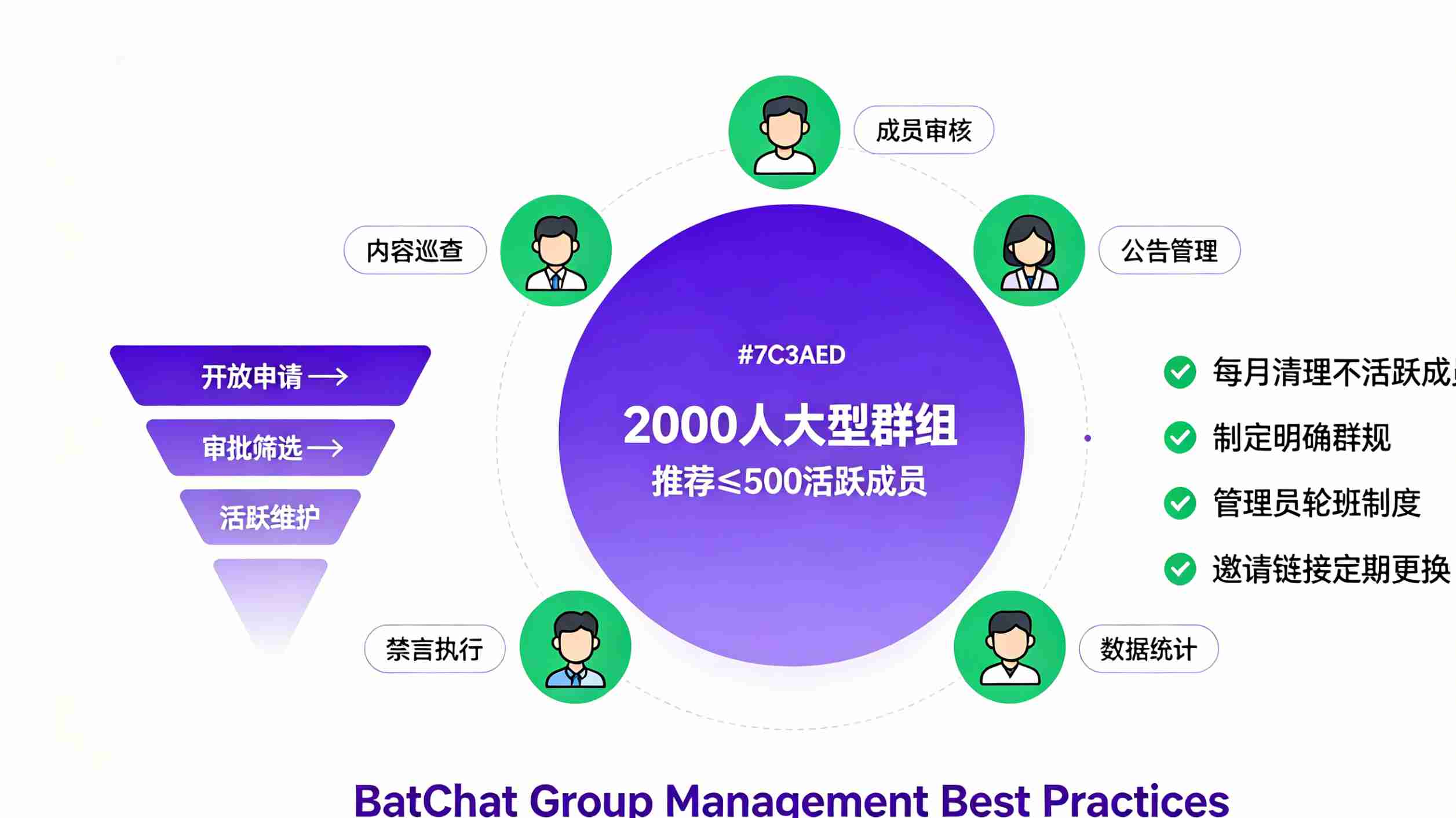
Best Practices for Managing Large Groups
Managing a 500+ member group is fundamentally different from managing a small team. Here are practices that scale.
Admin team structure: → 1 owner (strategic decisions, final authority) → 2-3 admins for member management (approvals, kicks, mutes) → 1-2 admins for content management (announcements, pinned messages, file library) → Rotate admin roles every 3-6 months to prevent burnout
Establish clear group rules: → Post rules in the group announcement → Enforce consistently — no exceptions for “popular” members → Update rules as the group evolves → Be specific: “No self-promotion” is better than “Be respectful”
Engagement strategies: → Schedule regular discussion topics or events → Use polls to gather member opinions → Recognize active contributors → Keep conversation on-topic — redirect off-topic threads to relevant channels
Security considerations: → Enable BatChat’s security features for sensitive groups → Regularly audit admin list — remove inactive admins → Monitor invite link distribution → Review member list for suspicious accounts periodically
Managing a large BatChat group is an ongoing process, not a one-time setup. The groups that thrive are the ones where admins are proactive, rules are clear, and members feel the space is valuable. Start with the basics covered here, and iterate based on what your specific community needs. If you need to get more people into your group, share your BatChat download link with potential members. For more BatChat features, explore our BatChat tutorials.