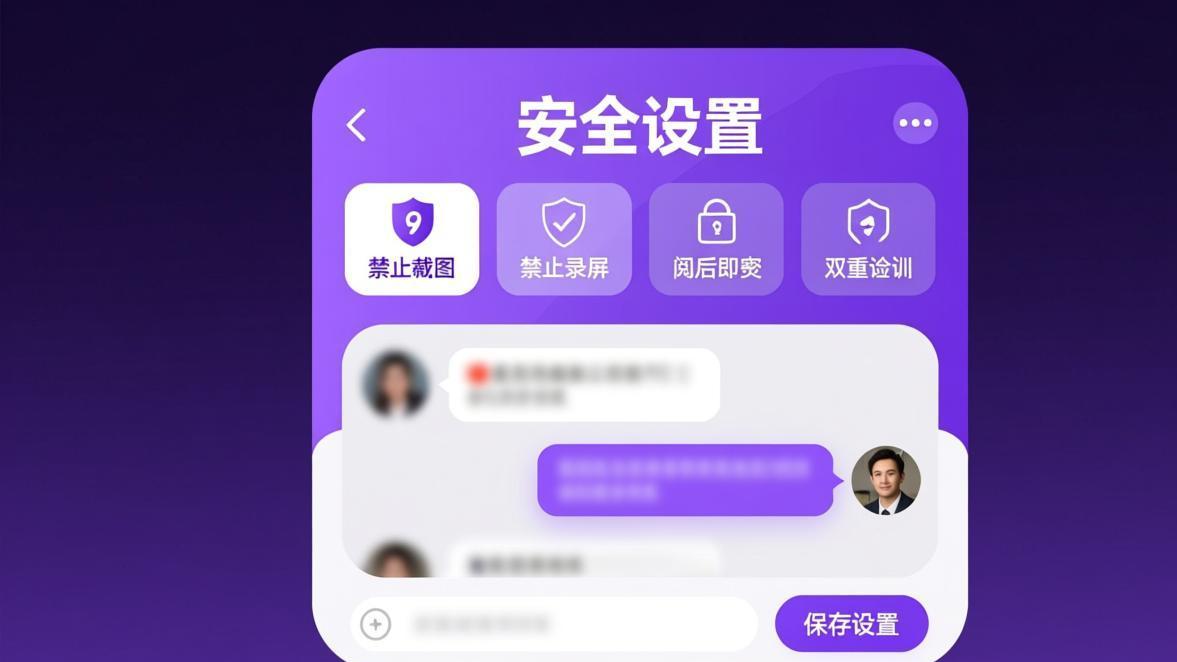
BatChat screenshot protection detects when someone captures your conversation and immediately alerts everyone in the chat. It works in both individual and group conversations, blocks screen recording, and runs on Android, iOS, Windows, and macOS. Here’s how to set it up, what to expect when it triggers, and which limitations you should know about.
What Is Screenshot Protection in BatChat?
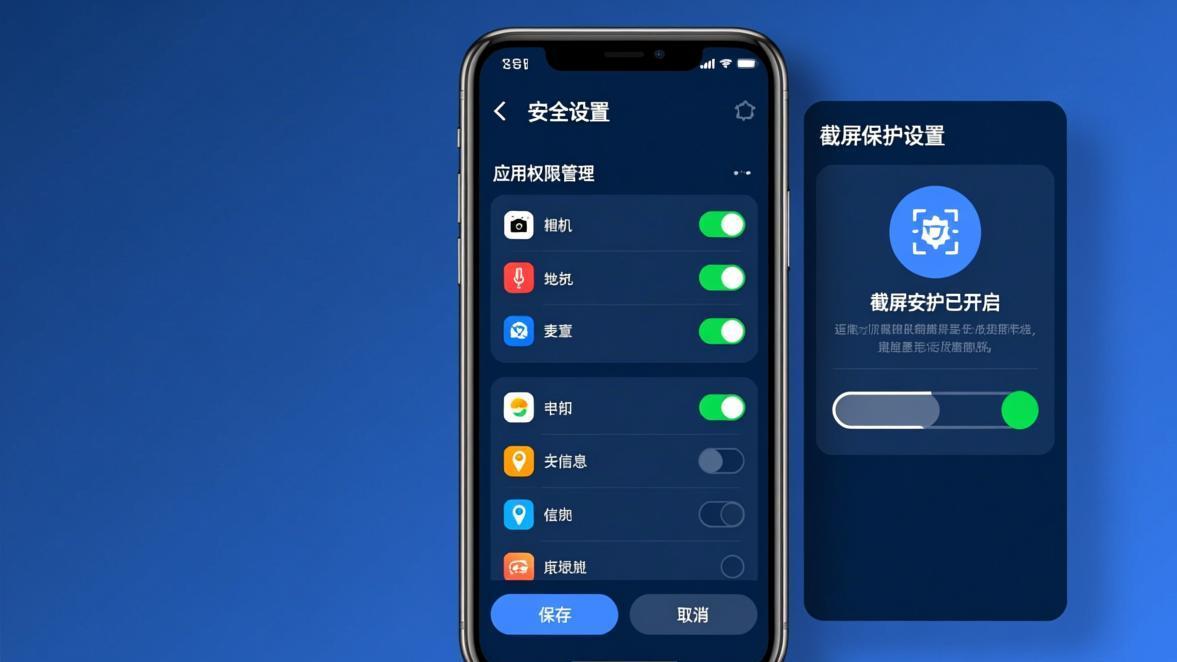
Screenshot protection in BatChat is a privacy feature that performs two actions simultaneously: it blocks the ability to take a screenshot of your conversation and sends an alert to all chat participants when someone tries. BatChat’s official description calls this “截屏防护” — a full-scene blocking system that prevents screenshots, screen recordings, and the malicious spreading of conversation content from the source.
Unlike messaging apps that only notify you after a screenshot has been taken, BatChat takes a more aggressive approach. The protection layer monitors for screen capture attempts in real time and blocks them outright. On supported devices and configurations, the screen goes blank or the capture results in a black image, so the would-be snooper gets nothing useful.
This feature sits alongside BatChat’s end-to-end encryption as part of its core security stack. Other apps in the same category treat screenshot detection as a premium add-on or skip it entirely. BatChat includes it as a built-in capability, which is one of the reasons it positions itself as a privacy-first messaging platform.
The official BatChat website lists screenshot protection as a “HOT” feature, emphasizing its importance in the product’s marketing. The feature description reads: “全场景阻断截屏、录屏行为,从源头杜绝信息泄露风险,有效防止对话内容被截取、录制与恶意传播” — which translates to blocking screenshot and recording behavior across all scenarios, preventing information leakage from the source, and effectively stopping conversation content from being captured, recorded, or maliciously spread.
For users who handle sensitive conversations — whether business deals, personal matters, or confidential information — this feature removes the most common way messages leak: someone taking a quick screenshot and sharing it elsewhere. You can explore the full privacy feature set in our BatChat privacy settings guide.
How to Enable Screenshot Protection on Android
Enabling screenshot protection on Android follows a straightforward path through the chat settings menu. The exact menu names may vary slightly depending on your BatChat version, but the logic is the same across releases.
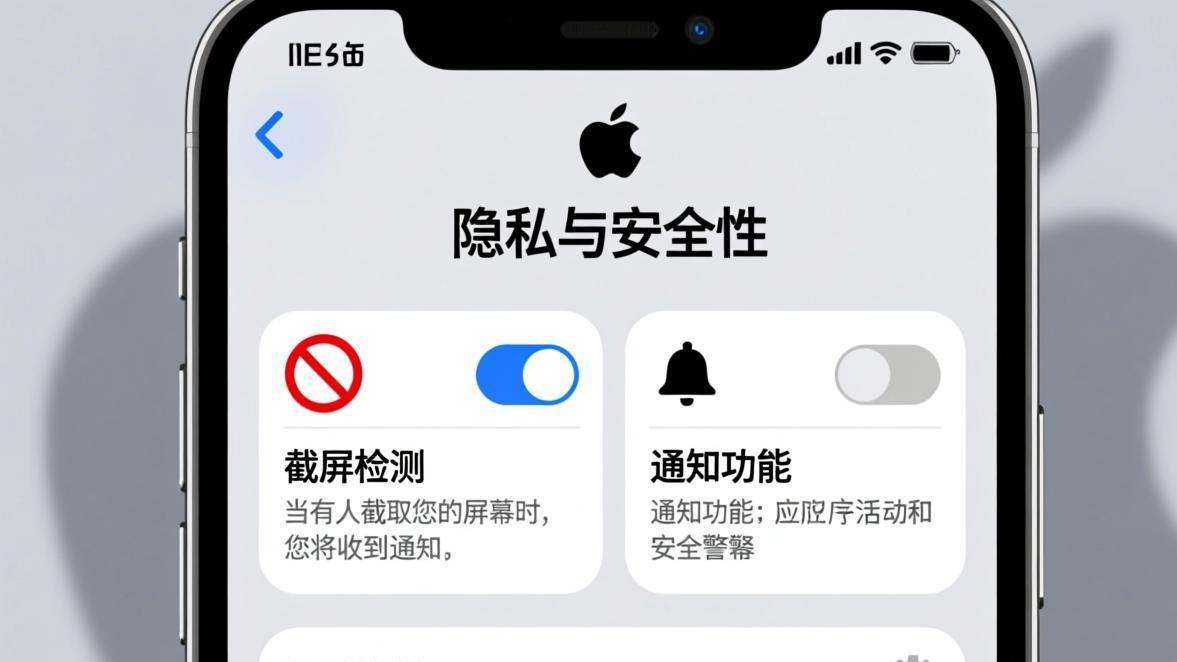
Step 1: Open the individual or group chat where you want to enable the protection.
Step 2: Tap the chat name or the menu icon (three dots) at the top-right corner of the conversation screen.
Step 3: Scroll to the Privacy or Security section within the chat settings panel.
Step 4: Toggle on the “Screenshot Protection” or “防截屏” switch. The toggle should change color to indicate it is active.
Step 5: A confirmation prompt may appear. Confirm to activate the protection for that specific chat.
Once enabled, any participant in that conversation will be blocked from taking screenshots. If they attempt it, the capture fails and all members receive an alert. The protection is tied to the chat, so enabling it in one conversation does not automatically enable it in others — unless you set it globally, which we cover in the next section.
On Android, BatChat leverages the operating system’s FLAG_SECURE window flag to prevent screen capture at the system level. This is the same mechanism banking apps use to blank out their screens during screenshots. It works reliably on Android 7.0 and later.
How to Enable Screenshot Protection on iOS
The iOS version of BatChat follows a similar pattern, but Apple’s platform imposes some differences in how screenshot blocking behaves.
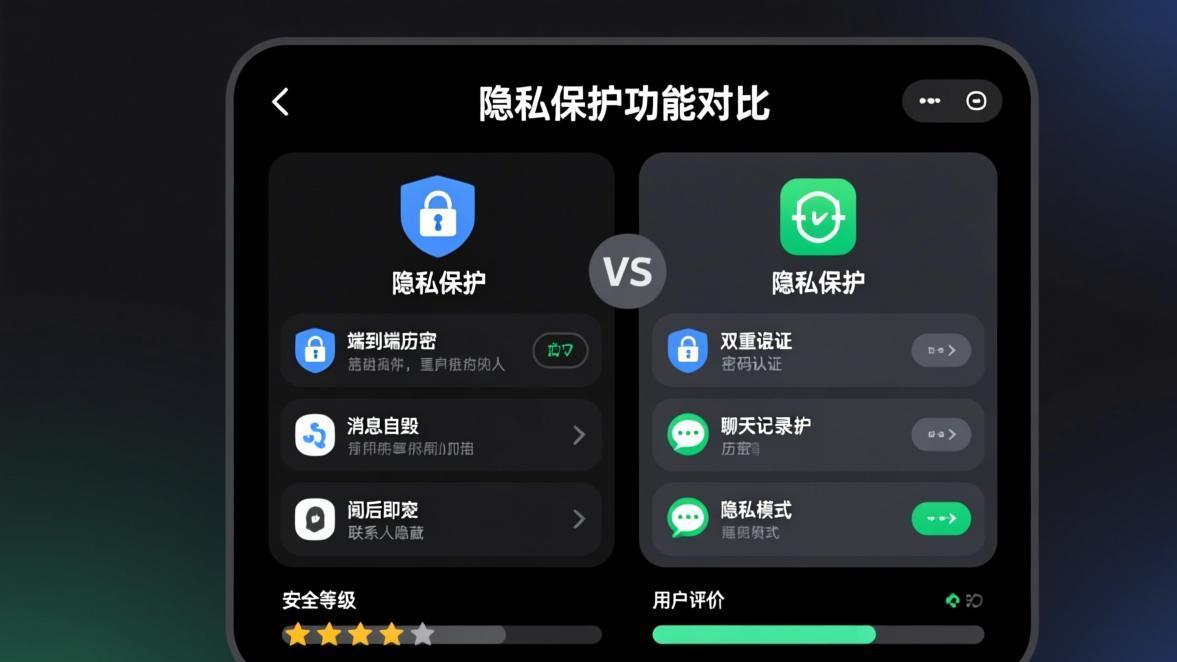
Step 1: Open the chat you want to protect.
Step 2: Tap the contact name or group name at the top of the screen to open chat details.
Step 3: Find the Privacy section — it may be labeled “Chat Privacy” or “Security Settings.”
Step 4: Enable the “Screenshot Protection” toggle.
Step 5: Confirm the activation when prompted.
On iOS, the behavior differs from Android in one important way: Apple does not allow apps to fully block screenshots at the system level using the same FLAG_SECURE mechanism available on Android. Instead, BatChat on iOS relies on detection — when a screenshot is taken, the app detects the system screenshot event and immediately sends an alert to all chat participants. The screenshot itself may still be captured, but the other party knows it happened instantly.
This is a platform limitation, not a BatChat limitation. No third-party iOS app can fully prevent the system screenshot function. What BatChat does on iOS is make screenshot attempts visible and accountable, which still serves as a strong deterrent.
How to Enable Screenshot Protection on Windows and macOS
The desktop versions of BatChat (Windows and macOS) also support screenshot protection, and the setup is consistent with the mobile experience.

Step 1: Right-click the chat or click the chat name/header to open the conversation settings.
Step 2: Navigate to Privacy or Security in the sidebar.
Step 3: Toggle on “Screenshot Protection.”
On desktop platforms, BatChat blocks standard screenshot tools (Print Screen, Win+Shift+S on Windows, Cmd+Shift+4 on macOS) and detects third-party screen capture software. When triggered, the capture produces a blank or black image and the chat participants receive the alert.
Desktop environments are where BatChat’s screenshot protection works most reliably, because the app has more control over window rendering than on mobile. Screen recording software like OBS Studio, ShareX, or Snagit are also detected in most configurations.
How to Disable Screenshot Protection
Disabling the feature reverses the same path you took to enable it.
Step 1: Open the chat settings for the conversation where protection is active.
Step 2: Navigate to the Privacy or Security section.
Step 3: Toggle off “Screenshot Protection.”
Step 4: Confirm the deactivation.
When you disable protection, participants can again take screenshots without triggering alerts. The change takes effect immediately — there is no delay or grace period. If you previously received alerts from this chat, those are not retroactively affected; they remain in the conversation history.
You might want to disable protection in low-sensitivity chats to avoid unnecessary alerts when contacts share content via screenshots for legitimate purposes, like saving a address or a quick reference image.
Global vs Per-Chat Screenshot Protection Settings
BatChat offers two levels of control over screenshot protection, and understanding the difference determines how much manual configuration you need.

Per-chat protection is the default mode. Each conversation has its own independent toggle. When you enable it in one chat, it does not affect any other chat. This gives you granular control — you can protect your sensitive work group chat while leaving your casual friend group unprotected.
Global protection applies the setting across all conversations at once. Rather than visiting each chat individually, you set it once in the app’s main privacy settings and it takes effect everywhere. This is useful if you want consistent protection across all your conversations without having to remember which chats you configured.
The global setting is typically found in:
Step 1: Open the main app menu (usually accessed via your profile or a gear icon).
Step 2: Go to Settings, then Privacy or Security.
Step 3: Find the global “Screenshot Protection” option.
Step 4: Toggle it on to enable for all conversations.
When global protection is active, per-chat toggles still exist. You can override the global setting for specific chats — turning protection off in a single chat even when the global default is on, or vice versa. The per-chat setting takes precedence over the global setting.
This two-tier system means you do not have to choose between “all or nothing.” Start with global protection as your baseline, then customize individual conversations as needed.
What Happens When Someone Takes a Screenshot?
When screenshot protection is active and someone attempts to capture the conversation, two things happen simultaneously: the capture is blocked, and an alert is sent.

On Android and desktop platforms, the screen capture attempt typically results in a black or blank image. The operating system’s secure flag prevents the chat content from being rendered in the capture buffer. The person trying to screenshot gets a useless image.
On iOS, the screenshot may succeed in capturing the screen content (due to Apple’s platform restrictions), but the detection system fires immediately. The alert is sent to all chat participants before the person who took it can act on it.
The alert that other participants see is a system message injected directly into the conversation. It typically reads something like “A participant took a screenshot” or the equivalent in the app’s display language. This alert is visible to everyone in the chat — not just the person whose messages were captured — and it cannot be deleted by the person who triggered it.
The alert includes the timestamp of the attempt, which creates an accountability trail. In group conversations, the alert identifies which member attempted the screenshot. In individual chats, the identity is implicit since there are only two participants.
The speed of detection varies by platform. On Android, detection is near-instant because it happens at the OS level. On iOS, detection relies on system event callbacks and may have a sub-second delay. On desktop, detection is also near-instant for standard capture methods, though highly customized screen recording tools may take slightly longer to detect.
What the Other Person Sees: Screenshot Notifications
The notification system is designed to make screenshot attempts transparent to all participants. When someone takes a screenshot in a protected conversation, every other person in the chat receives an immediate notification.

The notification appears as an in-chat message rather than a push notification. It stays in the conversation history, creating a permanent record of the attempt. The message format is controlled by the app — you cannot customize its wording or appearance.
For the person who took the screenshot, there is no way to suppress or recall this notification. It is a server-side action triggered by the detection event, so even if the person force-closes the app or switches to airplane mode, the alert has already been delivered to other participants’ devices.
In group chats, this creates a social deterrent. When the message “X took a screenshot” appears for everyone to see, it discourages casual screenshot behavior. Even if the actual screenshot content is blocked (on Android/desktop), the social cost of being “caught” is a powerful protection mechanism.
The real value of this system is accountability. Most messaging leaks happen because the person whose messages were screenshotted never finds out. BatChat’s notification system eliminates that asymmetry — if someone captures your conversation, you know about it immediately.
Does Screenshot Protection Also Block Screen Recording?
Yes. BatChat’s official feature description explicitly states “禁止截屏,录屏保护” — it blocks both screenshots and screen recording. The two are treated as part of the same protection layer.

On Android, the same FLAG_SECURE mechanism that blocks screenshots also prevents most screen recording tools from capturing the chat window. Standard recording methods (Android’s built-in screen recorder, third-party apps like AZ Screen Recorder) will produce black output for the BatChat window.
On Windows and macOS, BatChat detects screen recording sessions and either blocks the capture or sends the alert. Standard recording tools like OBS Studio, ShareX, and the built-in Windows Game Bar recorder are covered. macOS screen recording, controlled through System Preferences under Privacy and Security, is also detected when BatChat has the necessary permissions.
The scope of detection covers both system-level recording tools and popular third-party applications. However, as with screenshot blocking, the exact behavior depends on platform capabilities. Android and desktop platforms offer stronger blocking, while iOS relies on detection and alerting.
On iOS, the situation mirrors the screenshot limitation. Screen recording (via iOS Control Center) cannot be fully blocked at the app level. BatChat detects the recording session and alerts other participants, similar to how it handles screenshots on iOS.
External recording methods — pointing a phone camera at the screen, using a secondary device to photograph the monitor — are not detectable by any app. These are physical bypasses that exist for every screen protection system on every platform. We cover this in the limitations section below.
BatChat’s approach of combining blocking (where the platform allows) with detection and alerting (where blocking is not possible) is the most practical architecture available. It acknowledges platform realities while maximizing the deterrent effect across all devices.
Screenshot Protection vs Disappearing Messages
BatChat offers both screenshot protection and disappearing messages, but they solve different problems and work independently of each other.

Screenshot protection prevents real-time capture attempts and notifies participants when someone tries. It is about controlling what happens while the conversation is active.
Disappearing messages automatically delete messages after a set time period (hours or days). They are about controlling the lifespan of content after it has been sent. Messages vanish from both the sender’s and receiver’s devices after the timer expires, leaving no trace in the local chat history.
These features complement each other but do not depend on each other. You can use screenshot protection without disappearing messages, and vice versa. For maximum privacy, using both together creates a layered defense: screenshot protection prevents immediate capture, while disappearing messages ensure that even if protection fails or is bypassed, the content does not persist indefinitely.
The key difference in purpose: screenshot protection protects against the distribution of your messages (someone sharing a screenshot externally), while disappearing messages protect against the accumulation of your messages (someone building up a history of your conversations over weeks or months).
Think of it this way — screenshot protection is a lock on the door right now, while disappearing messages ensure the room is emptied periodically. Both matter, but they address different threat models.
For a deep dive on how disappearing messages work and how to configure auto-delete timers, see our BatChat disappearing messages guide.
Privacy Beyond Screenshots: Anti-Forwarding and Anti-Save
BatChat’s privacy ecosystem extends well beyond screenshot protection. Two related features that work alongside it are anti-forwarding and anti-save controls.

Anti-forwarding prevents recipients from forwarding your messages to other conversations or contacts. When enabled, the forward button is either disabled or produces an error. This closes another common leak vector — instead of screenshotting a message, someone might forward it to a different chat where it can be screenshotted freely. Anti-forwarding blocks that path.
Anti-save prevents recipients from saving media (photos, videos, documents) sent in the conversation. Normally, when someone receives a photo in a chat, they can save it to their device’s gallery. With anti-save enabled, the save option is unavailable. The media exists only within the BatChat app and cannot be exported to the device storage.
These three features — screenshot protection, anti-forwarding, and anti-save — form a comprehensive content protection system. When all three are active in a conversation, the only ways to extract content are physical methods (photographing the screen with another device) or manually transcribing text.
BatChat also offers “预设密信” (Preset Password Letters), which add another layer of protection by requiring a password to read specific messages. Combined with screenshot protection, this means that even if someone gains physical access to your device, they cannot both open the encrypted message and capture its content.
For a comparison of how BatChat’s overall privacy stack measures up against other secure messengers, check our BatChat vs Telegram comparison.
Known Limitations of Screenshot Protection
No software-based protection is absolute. Here are the specific limitations of BatChat’s screenshot protection that you should understand before relying on it for critical confidentiality.
iOS screenshots cannot be fully blocked. Apple’s iOS does not expose an API that lets apps prevent the system screenshot function. BatChat on iOS detects and alerts, but the screenshot image itself may still contain the conversation content. If someone takes a screenshot on iOS, you will know about it, but the capture may have succeeded.
Physical camera bypass is undetectable. Someone can photograph their screen with a second phone or camera. No app can detect this because it happens entirely outside the device’s software. This applies to every messaging platform, not just BatChat.
Rooted or jailbroken devices may bypass protections. On Android, a rooted device can modify system behavior to bypass FLAG_SECURE. On iOS, a jailbroken device can hook screenshot functions to prevent detection callbacks. BatChat’s protection assumes a standard, unmodified operating system.
External screen mirroring is a gray area. Casting your phone screen to a monitor or TV via Miracast, AirPlay, or HDMI may or may not be detected depending on the implementation. BatChat aims to cover this, but third-party mirroring tools vary widely in how they interact with the operating system’s screen capture pipeline. Some enterprise screen sharing tools that capture at the graphics driver level may also bypass app-level protections.
Screen recording software on desktop may require updates to detect. New screen capture tools and recording software are released regularly. While BatChat covers the most common tools, an obscure or newly released capture utility might temporarily bypass detection until the app is updated. This is an ongoing cat-and-mouse game that all privacy-focused applications face.
Group chat alerts reveal participation. If you are in a group chat with screenshot protection enabled and you attempt a screenshot, the alert identifies you to all other participants. This is by design, but it means the feature is less useful in groups where you need to take legitimate screenshots — you have to choose between privacy for others and your own ability to capture content.
These limitations are not unique to BatChat. Every messaging app that offers screenshot protection faces the same constraints. The value is not in being perfectly impenetrable — it is in raising the effort required to capture content and ensuring that when someone tries, the other participants are informed.
For a technical explanation of how BatChat’s end-to-end encryption works alongside these privacy features, see our BatChat encryption explained article.
Free vs Premium Screenshot Protection
Based on the available information from BatChat’s official materials and secondary sources, screenshot detection and alerts are a core feature available in the standard version of the app. One secondary source (web-batchat.com.cn) mentions that “高级版本可检测对方是否截屏” (premium version can detect if the other party screenshots), which suggests there may be enhanced detection capabilities in premium tiers.

The basic screenshot protection — blocking captures on supported platforms and sending in-chat alerts — appears to be available without a premium subscription. The premium distinction may relate to more advanced detection features or additional privacy controls.
If you are deciding whether to upgrade, screenshot protection alone is likely not the deciding factor since the core functionality is available in the free version. Premium value comes from the broader feature set: larger group sizes, advanced message management, and enhanced security options. Visit BatChatHub for a detailed breakdown of free vs premium features.
Troubleshooting: Screenshot Protection Not Working
If screenshot protection is not behaving as expected, here are the most common causes and fixes.
Protection is enabled but screenshots still work. On iOS, this is expected behavior — full blocking is not possible. On Android, check that you are running the latest version of BatChat. Older versions may not fully support the latest Android security flags.
No alert is sent when a screenshot is taken. Verify that protection is enabled for that specific chat. If you set global protection but then disabled it for a particular chat, the per-chat setting overrides the global one. Also check that both parties are running a version of BatChat that supports screenshot detection — very old versions may not have the detection callback.
The toggle is missing from chat settings. This usually means your app is outdated. Update BatChat to the latest version from the BatChat download guide. If the toggle is still missing after updating, the feature may not be available in your region or on your specific device model.
Desktop screen recording still captures content. Some niche screen recorders use low-level graphics hooks that may evade detection. Ensure BatChat is updated, and check that the screen recording tool is not running with administrator privileges (which can sometimes bypass app-level detection).
Group chat alerts are inconsistent. In very large groups, notification delivery may have slight delays. Also, if a participant has muted the chat, they will still see the in-chat alert message but may not get a push notification. The alert is always present in the conversation history regardless of notification settings.
FAQ
Should You Enable Screenshot Protection?
Enable it for any conversation where the content would cause problems if shared without your consent. That includes work discussions involving confidential information, personal conversations you want to keep private, and any exchange of sensitive media.
For casual chats where you regularly share screenshots back and forth — sharing a meme, a receipt, a quick reference image — leave it disabled. The constant alerts would be annoying and serve no practical purpose.
The most practical setup is global protection as the default, with specific overrides for chats where you want to allow screenshots. This way you are protected by default and only relax the rule when you actively choose to.
Screenshot protection is not a substitute for good judgment. It is a tool that raises the barrier to casual leaks and creates accountability when someone crosses a line. Combined with BatChat’s end-to-end encryption, disappearing messages, and anti-forwarding controls, it forms a privacy stack that goes well beyond what mainstream messaging apps offer. For the full picture of BatChat’s security capabilities, our BatChat encryption explained guide covers the encryption layer that underpins all of these features.